Add a tracking tag to your landing pages
 Add a tracking tag to your landing pages
- Updated
- 3 min read
- Every plan
- Who can do this: admins and members
 Open in ChatGPT
 Open in Claude
In short
Open Landings → Tracking, pick the tool, paste the ID it gives you and press Add to landing pages. Every landing page Baker publishes loads the tag, and your pages update within a few minutes. A tag that Baker proposes in a chat waits until you press Publish. To take a tag off, open it and press Remove from landing pages.
By the end, your tag runs on every landing page Baker publishes and your Forms can send their events to it.
Before you start
- The ID from the tool, such as a Pixel Code, Tag ID, Project ID or Site ID.
- Any access token or key the tool offers, if you want its optional extras.
- An admin or member role in Baker.
What is a tracking tag?
A tracking tag is a pixel or tool that runs on your landing pages: ad platform pixels such as the TikTok Pixel or Pinterest Tag, analytics such as Microsoft Clarity, Hotjar, Amplitude, PostHog, VWO or DataFast, OneTrust for cookie consent, reCAPTCHA against bots, or your own code. A tag belongs to the company: set it up once and every landing page Baker publishes loads it.
For TikTok and Pinterest, the tag is the whole integration. Baker does not connect to those ad accounts or change your campaigns there. What Baker does with each tool is on the tracking tags page.
Where are tags?
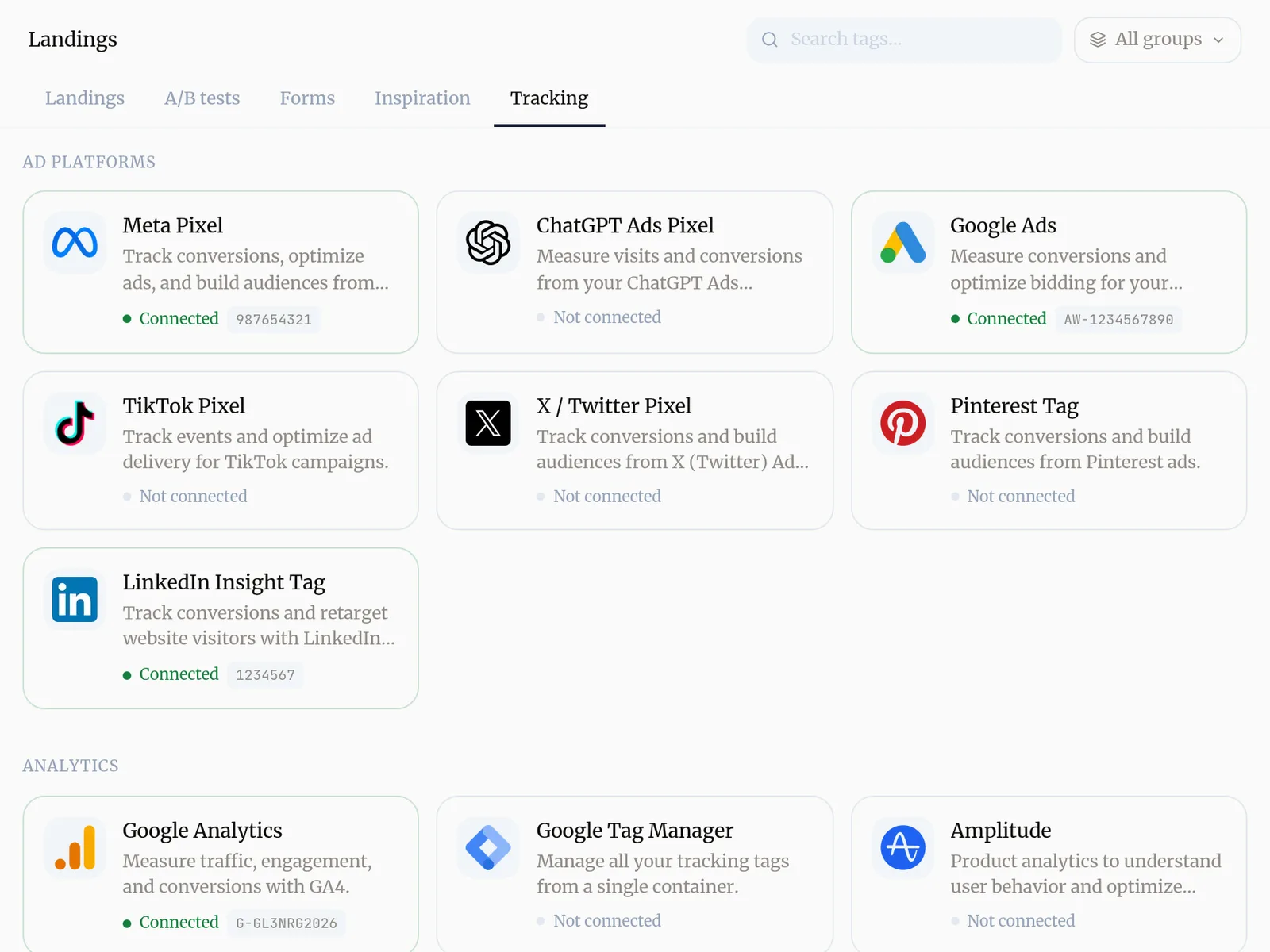
Open Landings and choose the Tracking tab. The gallery groups every tag under Ad Platforms, Analytics, Security and Other, and each card says whether it is Connected or Not connected. Use All groups to filter or search by name.
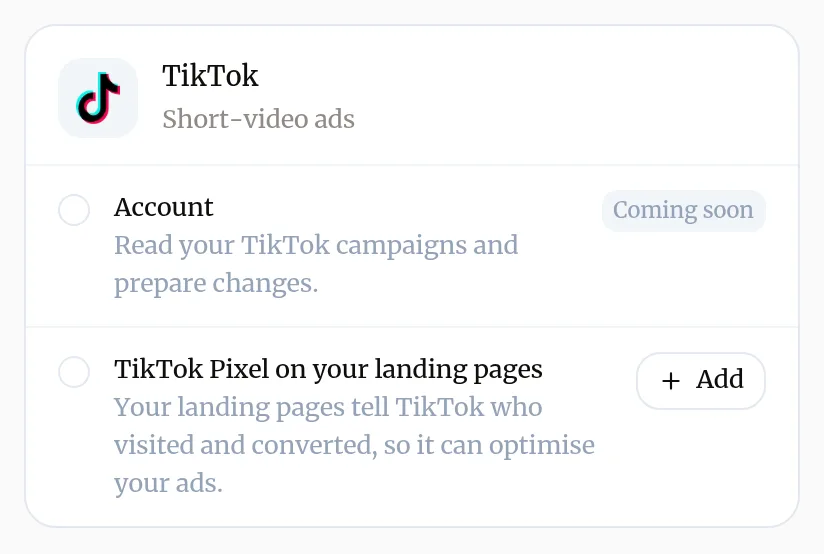
You can also reach a tag from its platform card in Brain → Integrations, where it shows as, for example, TikTok Pixel on your landing pages with an Add button.
Add a tag
- In Landings → Tracking, click the tool’s card.
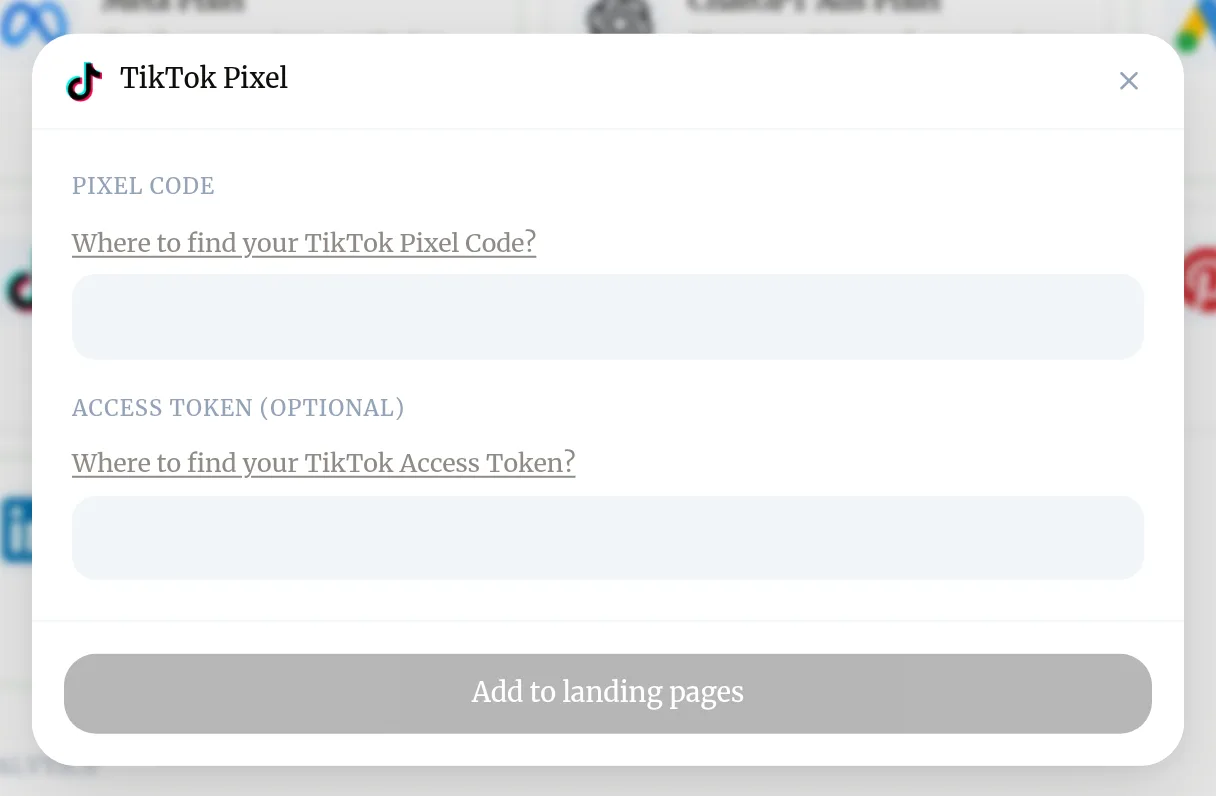
- Fill in the fields. Each one links to where you find the value in the tool, for example Where to find your TikTok Pixel Code?.
- Fill in optional fields only if you use them. Secret fields such as an access token are masked.
- Press Add to landing pages.
Baker confirms the tag is saved and your landing pages update, which can take 1 to 5 minutes. The card now shows Connected with the ID.
Add a tag from a chat
Ask Baker, for example “Add our Hotjar to the landing pages”. Baker fills in what it knows and shows you a form in the chat to review, add any secret and approve. The tag goes live when you press Publish.
Send Form events to a tag
A tag on its own reports visits. To count leads, ask Baker in a chat to send a Form step, such as the completed form, to the tag. Most tools accept these events; OneTrust and reCAPTCHA do not need them. The change goes live when you press Publish. See add a Form.
What does success look like?
- The tag’s card in Landings → Tracking shows Connected.
- A few minutes later, the tool shows visits from your landing pages. Your cookie consent settings decide whether a visitor’s browser runs the tag before they answer the banner.
Change or remove a tag
- In Landings → Tracking, click the tag’s card. If you have several of the same kind, pick one.
- To change it, edit the fields and press Update.
- To remove it, press Remove from landing pages.
Your landing pages update within a few minutes. Nothing changes in the tool’s own account: data it already received stays there.
Get help
Write to support@withbaker.com or use the contact page. No login needed, and we reply within 24 hours.
Try asking Baker
Add our TikTok Pixel to the landing pages and send a completed lead from the demo Form to it.
What happens when you publish
Tags Baker proposed in the chat go onto your landing pages, and the Forms you changed start sending their events.
Troubleshooting
- If you see "Baker shows Check the region when you save Amplitude or PostHog."
- The key belongs to a different data region than the one you chose. Press Switch and save to use the right region, or Save anyway if you are sure.
- If you see "Baker shows Not recognised when you save."
- The tool did not accept the key. Check you copied the whole key from the right project, then save again. Save anyway keeps it as it is.
- If you see "Baker says only one tag of that kind is allowed."
- A company can have one PostHog, one DataFast and one Custom code tag. Open the existing one and change it instead.
- If you see "The tag doesn't show on a landing page yet."
- Pages update within a few minutes of saving. A tag added from a chat appears only after you press Publish.
- If you see "The pixel counts visits but no leads."
- A tag on its own reports visits. Ask Baker in a chat to send the Form's completed step to that tag, then publish.
Questions
Do I need to connect an account for a tag?
No. A tag needs only the ID the tool gives you. Some platforms, such as Google Analytics or Tag Manager, also have an account you can connect in Brain → Integrations for Baker to read or change.
Who can see the access tokens I enter?
Secret fields are masked and Baker never reads them in a chat. When Baker proposes a tag, it fills in only the public ID, and any secret is either typed by you or taken from a Credential you already saved. Baker never sees the secret in the chat.
Does a tag run on one page or all of them?
On all of them. A tag belongs to the company, so every landing page Baker publishes loads it.
Next steps
- Add a form that sends leads to your CRM Create a Form with Baker, choose where its leads go, from HubSpot to a Google Sheet or your inbox, and put it live on your landing pages.
- Connect Google Tag Manager to Baker Connect your Tag Manager container, add it to your landing pages, publish tag changes from Baker, and disconnect, with what happens to your data.
- Find out why a change isn't live The six reasons a change you made with Baker is not on your site or ad account yet, and what to do about each.
Was this helpful?
Thanks. We read every answer.