Connect Google Tag Manager to Baker
 Connect Google Tag Manager to Baker
- Updated
- 4 min read
- Every plan
- Who can do this: admins and members
 Open in ChatGPT
 Open in Claude
In short
Open Brain → Integrations, press Connect next to Google Tag Manager account, sign in with a Google account that has Publish permission on your container and allow all four permissions. Choose your container and save. Baker can then read it and prepare tag changes. When you press Publish, Baker applies them, saves a container version and publishes it, so they reach your site at once.
By the end, your container is connected and the tag changes you approve go live when you press Publish.
Before you start
- A Google Tag Manager web container.
- A Google account with Publish permission on that container.
- An admin or member role in Baker, or a setup link sent by someone who has one.
- A word with whoever reviews changes in Tag Manager, because Baker publishes the container version itself.
What does the Tag Manager connection do?
- Reads your container. Its tags, triggers, variables and folders, which tag fires on which trigger, and what sends data to Meta, Google Ads or Google Analytics.
- Reads its history. What changed, by anyone, since a date, and whether each change is live.
- Prepares changes in a chat. New or edited tags, triggers, variables and folders, built-in variables switched on or off. Baker checks each change against the container, for example that every variable a tag names exists.
- Publishes at Publish. Baker applies the changes in the right order, saves a container version and publishes it.
Before you begin
- A Tag Manager web container.
- A Google account with Publish permission on it. Tag Manager grants Read, Edit, Approve and Publish. Baker needs Publish to take your changes live.
- An admin or member role in Baker.
If someone else holds the access, send them this message, or a setup link:
Hi! We use Baker for our marketing and want it to manage tags in our Google Tag Manager container. Could you connect it? Sign in with a Google account that has Publish permission on the container and allow all four permissions. Baker only changes the container when we approve and publish the change, and it publishes the version itself.
Connect Google Tag Manager
- In Baker, open Brain → Integrations and stay on the Platforms tab.
- Find Google Tag Manager under Analytics.
- Next to Google Tag Manager account, press Connect. A Google window opens.
- Choose the Google account with access to your container.
- Allow all four permissions Google lists for Baker.
- Back in Baker, the Tag Manager Containers list opens. Tick every container Baker should manage under Available resources and press Save changes.
Change the selection later with Containers on the account row.
Which permissions does Baker ask for?
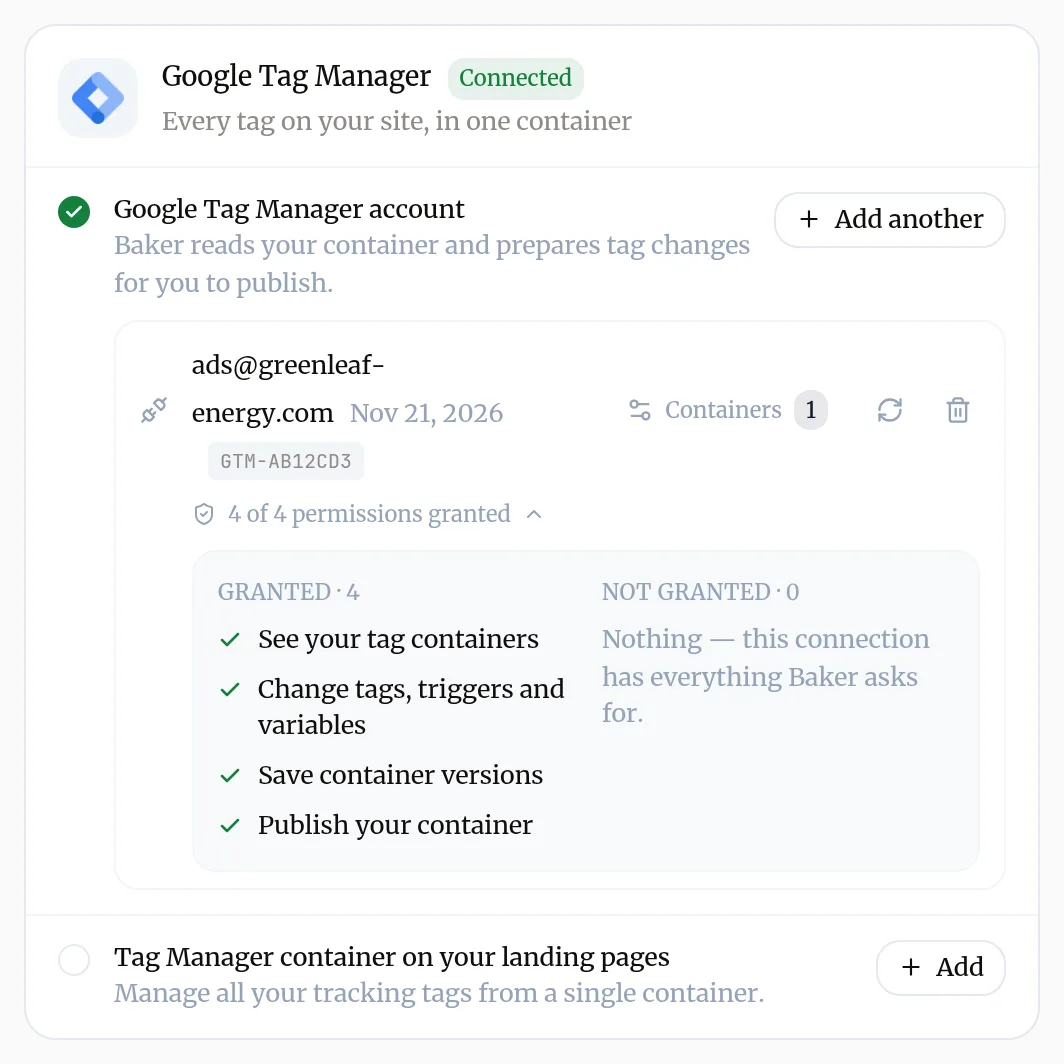
| Permission in Baker | Google permission | What Baker uses it for |
|---|---|---|
| See your tag containers | tagmanager.readonly | Reading the container and its history |
| Change tags, triggers and variables | tagmanager.edit.containers | Applying the changes you approved |
| Save container versions | tagmanager.edit.containerversions | Saving those changes as a version |
| Publish your container | tagmanager.publish | Taking that version live |
What does success look like?
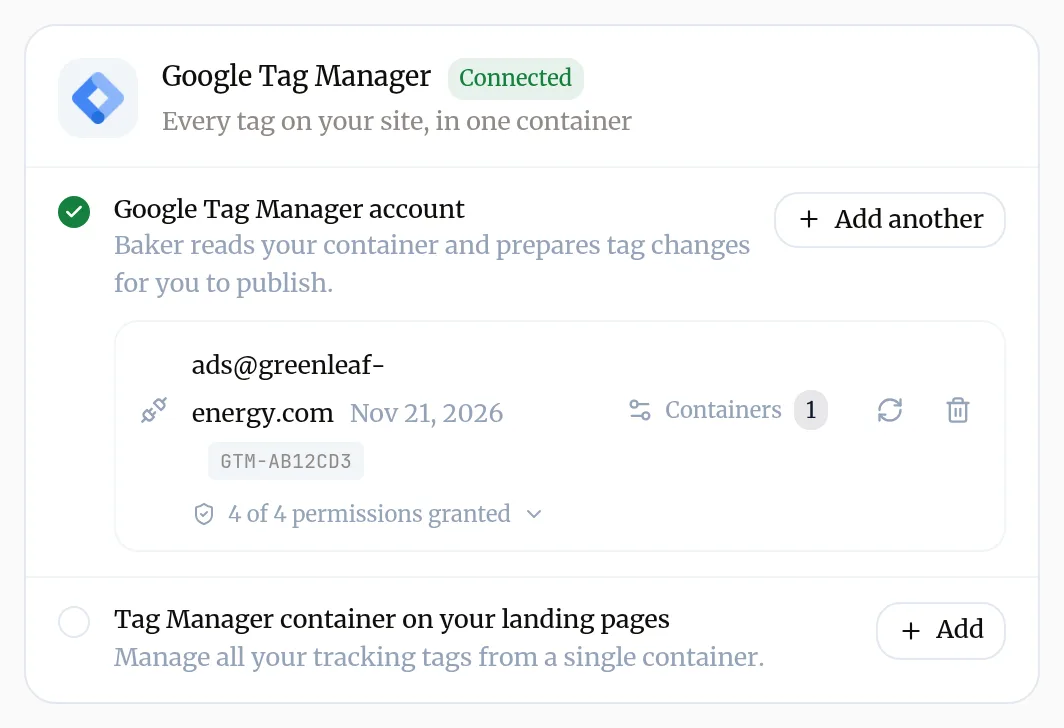
- The card shows your account with a green check, a Containers count and 4 of 4 permissions granted.
- In a chat, ask “What’s in my Tag Manager container?” and Baker summarises its tags and triggers.
Put the container on your landing pages
If your landing pages should load the container too:
- On the Google Tag Manager card, next to Tag Manager container on your landing pages, press Add.
- Enter your Container ID (it starts with GTM-) and press Add to landing pages.
Your Forms can then push their events to the container’s data layer. More in add a tag to your landing pages.
Use it every day
- In a chat, describe the change: “Add a GA4 event tag for the demo request Form” or “Pause the old Hotjar tag”.
- Review the changes Baker lists in the chat. Ask Baker to amend or drop any of them.
- Press Publish. Baker applies them, saves a version and publishes it.
Disconnect Google Tag Manager
- Open Brain → Integrations and find your account on the Google Tag Manager card.
- Press the bin icon (Disconnect account) and confirm with Disconnect.
The container tag on your landing pages is separate. To remove it, press Manage next to it and choose Remove from landing pages.
What happens to your data?
In Tag Manager: nothing is removed. Versions Baker published stay in the container’s history and the live version keeps running.
In Baker: Baker deletes its sign-in to your Google account and stops reading the container. If you publish a chat with Tag Manager changes while disconnected, those changes fail. Reconnect, then ask Baker to fix them.
In your Google Account: you can also remove Baker from your Google Account’s third-party connections. Baker uses one Google sign-in for all its Google connections, so that also stops any other Google connection made with the same Google account.
Get help
Write to support@withbaker.com or use the contact page. No login needed, and we reply within 24 hours.
Try asking Baker
Read my Tag Manager container and tell me which tags send conversions to Google Ads and Meta, and on which triggers.
What happens when you publish
Baker applies the changes to the container, saves them as a new version and publishes it. Your site runs the new tags from that moment.
Troubleshooting
- If you see "A Publish says the Google account isn't allowed to make the change and names a permission."
- Ask the container's admin to give that Google account the permission named, up to Publish, then press Reconnect to refresh permissions on the account row and ask Baker for the changes again.
- If you see "Baker says it can edit the container but can't save the changes as a version, so nothing was changed."
- The connection is missing a permission added later. Reconnect Tag Manager and allow all four permissions, then ask for the changes again.
- If you see "Baker says Tag Manager is busy with other changes."
- Google limits how fast its Tag Manager can be changed. Wait a little and ask Baker to try the remaining work again.
- If you see "The container list says No containers found for this account."
- The Google account you signed in with has no access to a container. Ask the container's admin to add it, or press Add another and sign in with the right one.
- If you see "Baker held back publishing because the container has other edits."
- Someone has unsaved or conflicting work in the container's workspace. Ask them to finish or discard it in Tag Manager, then ask Baker to publish again.
Questions
Do I need to approve the version in Tag Manager too?
No. Baker publishes the version itself when you press Publish in Baker. Nothing moves in Tag Manager before that.
Does connecting Tag Manager put the container on my landing pages?
No. That is the Tag Manager container tag, added in Landings → Tracking or from the card. Connecting the account lets Baker read and change what runs inside the container.
Can I connect more than one container?
Yes. Tick every container Baker should manage in the list. Baker asks which one you mean when a change could go to more than one.
Next steps
- Add a tracking tag to your landing pages Add a pixel or analytics tool such as TikTok, Pinterest, Clarity, Hotjar or PostHog to every landing page, change it, or remove it, from Landings → Tracking.
- Connect Google Analytics to Baker Connect your GA4 property, choose it, add the GA4 tag to your landing pages, and disconnect, with what happens to your data on each side.
- Publish your changes What Publish sends live, in what order, how to check it worked, and how to discard a chat's changes instead.
Was this helpful?
Thanks. We read every answer.