Connect Google Search Console to Baker
 Connect Google Search Console to Baker
- Updated
- 3 min read
- Every plan
- Who can do this: admins and members
 Open in ChatGPT
 Open in Claude
In short
Open Brain → Integrations, press Connect next to Google Search Console account and sign in with a Google account that can open your site in Search Console. Allow the one permission, choose your sites and save. Baker can then read your searches, pages and sitemaps. The connection is read-only: Baker never changes anything in Search Console, so there is nothing to publish.
By the end, Baker can read your Search Console data and answer questions about your organic search.
Before you start
- A site verified in Google Search Console.
- A Google account with access to that site.
- An admin or member role in Baker, or a setup link sent by someone who has one.
What does the Search Console connection do?
Baker reads, and only reads:
- Searches and pages: clicks, impressions and position by search, page, country, device and date.
- Paid and organic overlap: searches you already win organically while paying for them in Google Ads.
- Negative keyword ideas: support, login or cancel searches that should not trigger your ads.
- Brand search trends after a campaign.
- Sitemaps: their errors, warnings and when Google last read them.
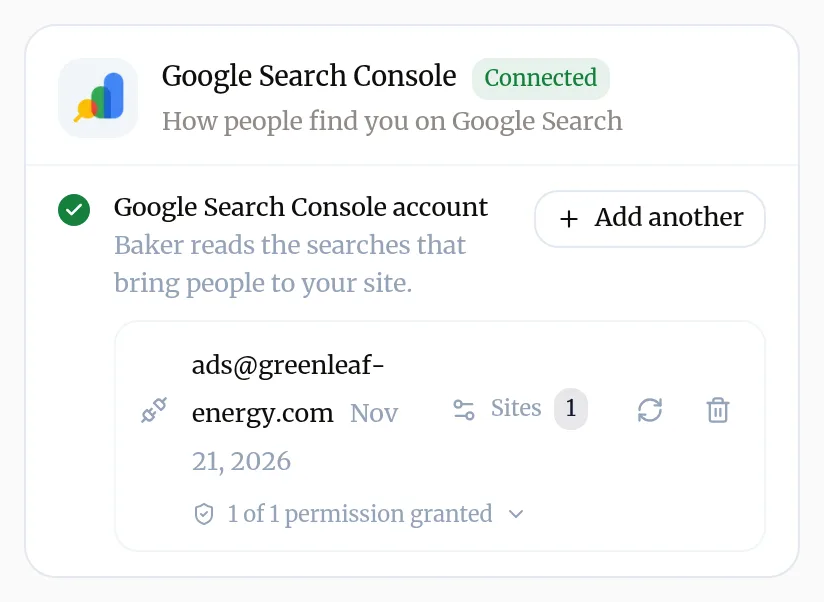
Before you begin
- A site verified in Google Search Console.
- A Google account with access to that site.
- An admin or member role in Baker.
If someone else holds the access, send them this message, or a setup link:
Hi! We use Baker for our marketing and want it to read our Google Search Console data. Could you connect it? Sign in with a Google account that can open our site in Search Console. Baker only reads; it cannot change anything there.
Connect Google Search Console
- In Baker, open Brain → Integrations and stay on the Platforms tab.
- Find Google Search Console under Analytics.
- Next to Google Search Console account, press Connect. A Google window opens.
- Choose the Google account with access to your site and allow the permission Google lists.
- Back in Baker, the Search Console Sites list opens. Tick your sites under Available resources and press Save changes.
Change the selection later with Sites on the account row.
Which permission does Baker ask for?
| Permission in Baker | Google permission | What Baker uses it for |
|---|---|---|
| See your search performance | webmasters.readonly | Reading searches, pages and sitemaps |
What does success look like?
- The card shows your account with a green check, a Sites count and 1 of 1 permission granted.
- In a chat, ask “What are our top 10 searches this month?” and Baker answers from Search Console.
Use it every day
- “Which searches do we win organically and still pay for?”
- “Find search terms we should add as negative keywords.”
- “Did brand searches grow after the awareness campaign?”
- “Are there errors in our sitemaps?”
- Ask for a Report that keeps your top searches up to date. See read your reports.
Disconnect Google Search Console
- Open Brain → Integrations and find your account on the Google Search Console card.
- Press the bin icon (Disconnect account) and confirm with Disconnect.
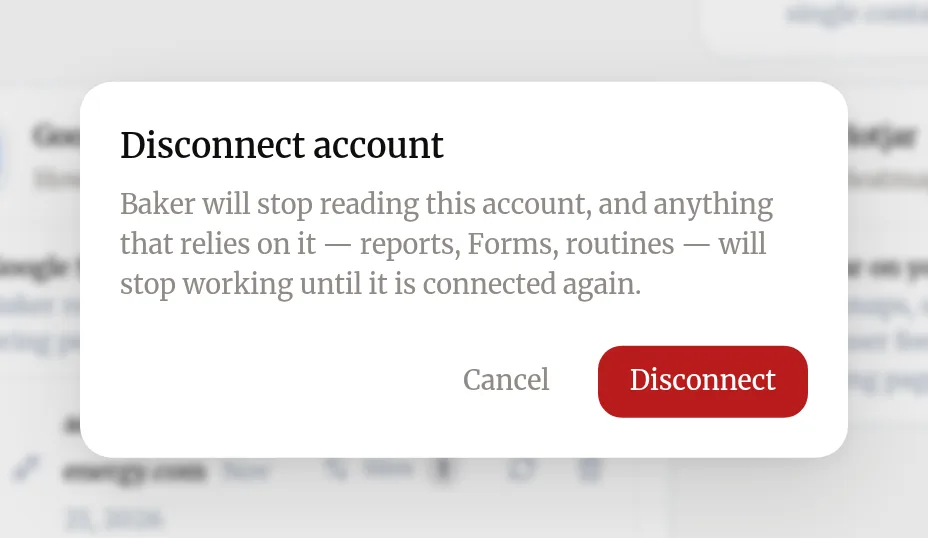
What happens to your data?
In Search Console: nothing changes. Baker never wrote anything there.
In Baker: Baker deletes its sign-in and stops reading Search Console. Reports and routines that read it stop until you connect it again.
In your Google Account: you can also remove Baker from your Google Account’s third-party connections. Baker uses one Google sign-in for all its Google connections, so that also stops any other Google connection made with the same Google account.
Get help
Write to support@withbaker.com or use the contact page. No login needed, and we reply within 24 hours.
Try asking Baker
Which searches do we already rank for in the top two organic positions and still pay for in Google Ads?
Troubleshooting
- If you see "The site list says No verified sites found."
- The Google account you signed in with has no access to a verified site. Ask whoever manages Search Console to add that account, or press Add another and sign in with the right one.
- If you see "Baker asks which site you mean."
- Several sites are connected, for example the domain and its www address. Tell Baker which one, or untick the ones you don't need under Sites.
- If you see "The card asks you to reconnect."
- Press Reconnect to refresh permissions on the account row and sign in again with the same Google account.
Questions
Can Baker change anything in Search Console?
No. The only permission Baker asks for is to see your search performance. It cannot submit sitemaps, remove pages or change settings.
Do I need Google Analytics as well?
No, but they answer different questions. Search Console tells you which searches bring clicks; Google Analytics tells you what visitors do on your site.
Next steps
- Read your results in Measure and Reports Where to see how your landing pages, Forms and ads perform, how live Reports keep their numbers fresh, and how to ask Baker for a new one.
- Connect Google Analytics to Baker Connect your GA4 property, choose it, add the GA4 tag to your landing pages, and disconnect, with what happens to your data on each side.
- Connect an account to Baker Sign in to an ad, analytics or CRM platform from Brain → Integrations, choose which accounts Baker uses, and disconnect it when you need to.
Was this helpful?
Thanks. We read every answer.