Connect Meta Ads to Baker
 Connect Meta Ads to Baker
- Updated
- 6 min read
- Every plan
- Who can do this: admins and members
 Open in ChatGPT
 Open in Claude
In short
Open Brain → Integrations in Baker, press Connect on the Meta card, sign in with Facebook, accept the permissions and choose the ad accounts Baker may use. You need a Facebook login that can manage those accounts. Baker then reads them and prepares changes that apply only when you publish. Lead ads, catalogs and Page posts are switched on by Baker's team, followed by a reconnect.
By the end, your Meta ad accounts are connected and Baker can read them and prepare changes for you to publish.
Before you start
- A Meta ad account and a Facebook login that can manage its campaigns.
- For lead ads, access to the Facebook Page the ads run from.
- An admin or member role in Baker, or a setup link sent by someone who has one.
What does the Meta connection do?
Connecting Meta lets Baker work on your Facebook and Instagram ads:
- Read. Your campaigns, ad sets, ads, audiences and results, refreshed every few hours for reports and alerts.
- Prepare changes. New campaigns, ads, budgets, targeting and audiences, prepared in a chat and shown as Ads Manager would show them.
- Apply them when you publish. Nothing reaches Meta until someone presses Publish. Then the changes are real and can spend money.
The Meta Pixel on your landing pages is a separate part of the same card: see tracking tags.
Before you begin
You need:
- A Meta ad account, usually inside a business portfolio.
- A Facebook login that can manage the ad account’s campaigns. Baker publishes as that login, so it can do what that login can do. For lead ads, it also needs access to the Facebook Page the ads run from.
- An admin or member role in Baker. Viewers can’t connect accounts.
If someone else holds the Meta access, send them this message, or send them a setup link so they can connect without a Baker login:
Hi! We use Baker to prepare and review our Meta ads. Could you connect our Meta ad account? Sign in with Facebook from the link, keep every permission on, and tick our ad account. Baker can’t change anything until one of us reviews it and presses Publish.
Connect Meta
- In Baker, open Brain → Integrations and stay on the Platforms tab.
- Find the Meta card under Advertising.
- Next to Meta Ads account, press Connect. A Facebook window opens.
- Sign in with Facebook and continue as the login that manages your ad account.
- Meta lists the permissions Baker asks for. Keep them all on: a permission you turn off shows on the card under Not granted, and the part of Baker that needs it stops working.
- The window closes and Baker opens Meta Ad Accounts.
You can also connect from a chat: when Baker needs Meta, it shows a card that connects without leaving the conversation.
Choose the ad accounts
- In Meta Ad Accounts, tick each ad account Baker may use. Each one shows its ID and currency.
- Press Save (it says how many accounts you picked).
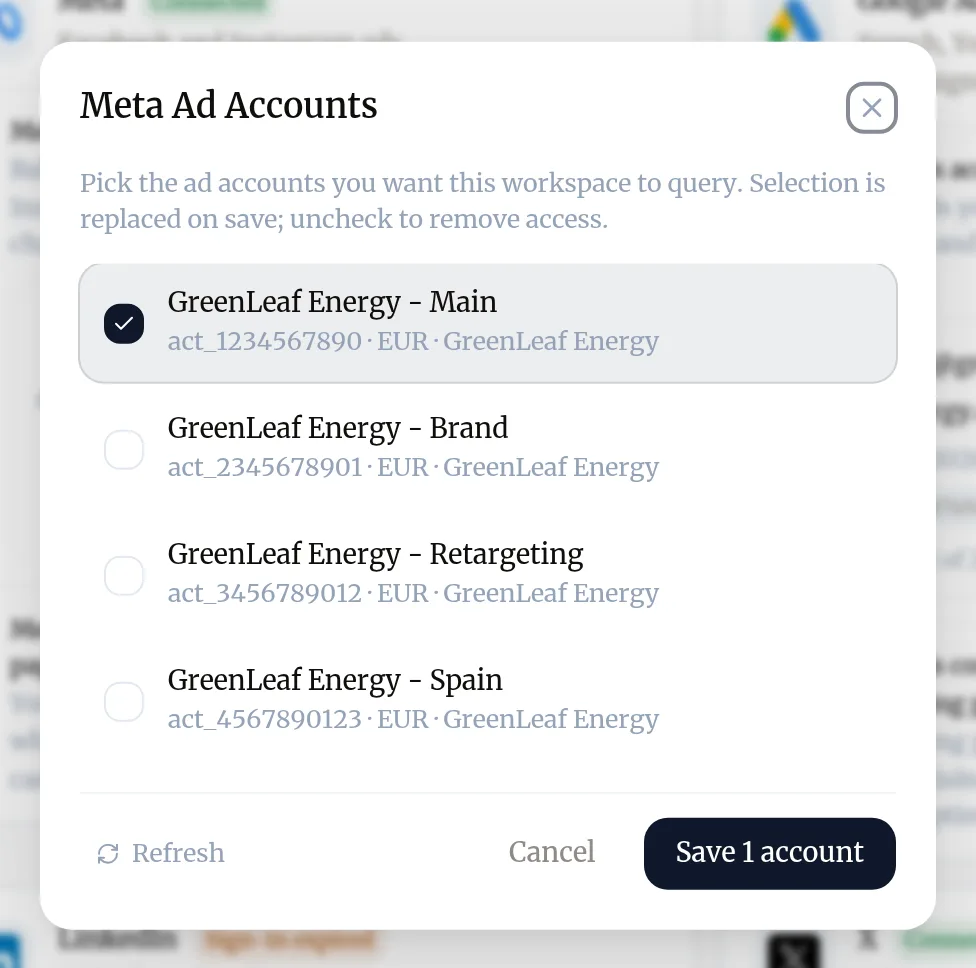
Baker reads and changes only the accounts you ticked. To change them later, press Ad Accounts on your connection in the Meta card. If an account is missing, press Refresh in the list.
Which permissions does Baker ask for?
Every company is asked for these. The card shows each one with the name Baker uses for it.
| Meta permission | In Baker | What Baker uses it for |
|---|---|---|
ads_read | See your ad accounts and how your ads perform | Reports, alerts and reading before a change |
ads_management | Create and change your ads | Applying the changes you publish |
business_management | See your Business Manager accounts and Pages | Finding the ad accounts, Pages and pixels of your business |
pages_show_list | See the Pages you manage | Choosing the Page an ad runs from |
pages_read_engagement | See your Pages’ posts and engagement | Boosting a post you already published |
public_profile, email | Not listed | Showing which login is connected |
Three more groups are asked for only once Baker’s team switches them on for your company:
| Switched on by Baker’s team | Meta permissions | In Baker |
|---|---|---|
| Lead ads, click-to-message ads and Instant Experiences | pages_manage_ads, leads_retrieval | Run lead ads from your Pages; Download the leads your forms collect |
| Catalogs | catalog_management | Manage your product catalogs |
| Page posts | pages_manage_posts | Publish posts to your Pages |
Switch on lead ads, catalogs or Page posts
- Send a request from Requests in Baker’s sidebar (press New request), or write to support@withbaker.com, saying what you need.
- When Baker’s team confirms it is on, open the Meta card in Brain → Integrations. It says Reconnect Meta Ads to let Baker followed by what you asked for.
- Press the reconnect icon on your connection and accept the new permissions in Meta’s window.
Meta keeps the permissions you granted when you first connected, so switching a feature on does nothing until you reconnect. Reporting, campaigns and ad changes keep working meanwhile.
If an agency runs the account
An agency can be given access to your Meta assets as a partner. If your agency set up partner access in Baker, your setup link shows these steps:
- Open Business settings in Meta Business Suite and choose your business.
- Go to Partners, click Add, then Give a partner access to your assets.
- Enter the agency’s business ID.
- Give full control of your Facebook Page, ad account, pixels, Instagram account and datasets, then click Assign assets.
On the agency’s side, the shared ad account appears in Baker only after someone in the agency’s business portfolio assigns it to the person who connects Meta.
What does success look like?
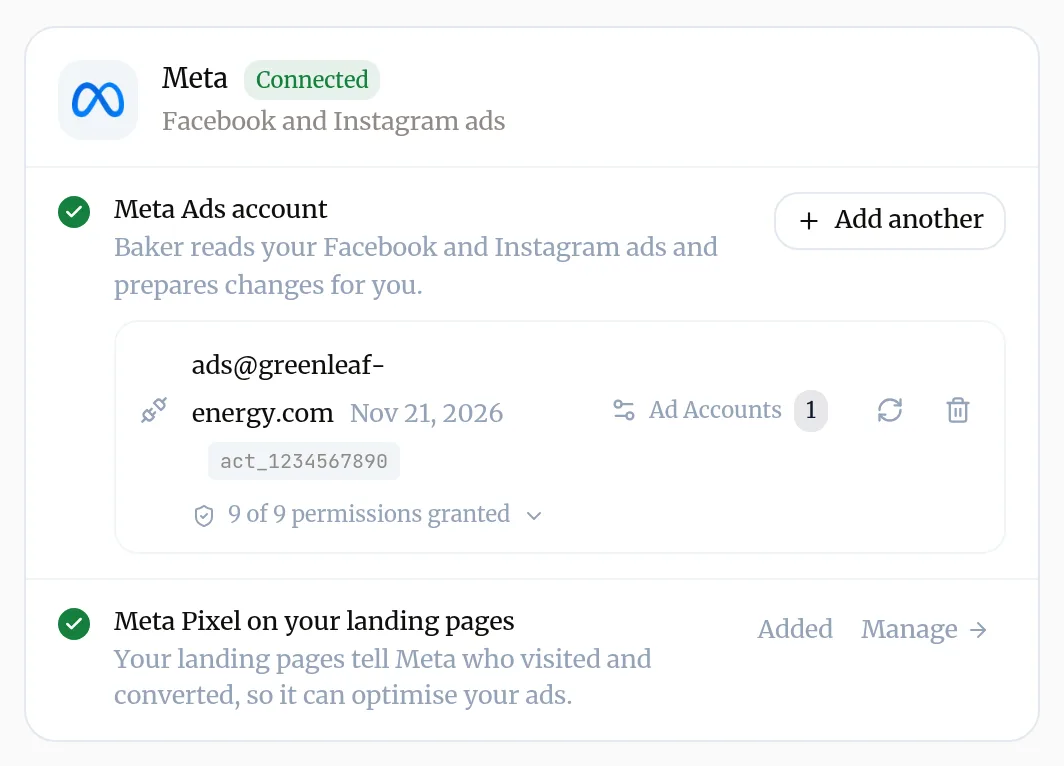
- The Meta card shows Connected, your login, and Ad Accounts with the number you chose.
- Its permission list reads 5 of 5 permissions granted, or more once Baker’s team switches on lead ads, catalogs or Page posts for your company.
- In a chat, ask “Which Meta ad accounts can you see?” and Baker lists the ones you ticked.
Use it
Ask Baker in a chat. For example:
- “Which Meta ads spent the most last week without leads?”
- “Build a prospecting campaign for homeowners aged 30 to 65 with three ads from my latest creatives.”
- “Pause the ad sets with a cost per lead above 40 euros.”
Baker prepares the changes and shows them before anything happens. Read them and press Publish. Step by step: Launch and change ads.
Disconnect Meta
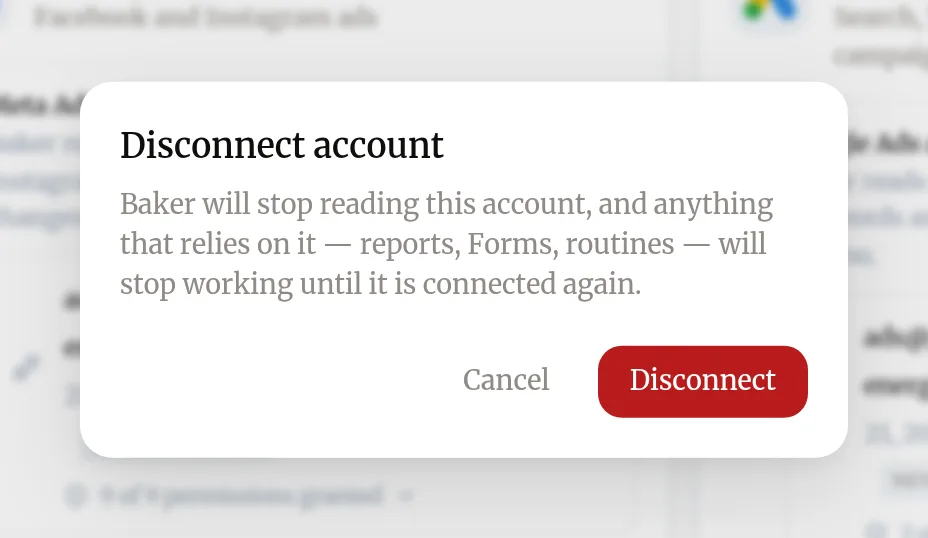
- Open Brain → Integrations and find your login on the Meta card.
- Press the bin icon (Disconnect account).
- Confirm with Disconnect.
What happens to your data?
On Meta: nothing changes. Campaigns, ads and audiences Baker published stay and keep running as they are. Pause them in Meta, or ask Baker before you disconnect.
In Baker: Baker deletes its sign-in, stops reading the account and stops refreshing its results. Reports, alerts and routines that rely on Meta stop working until you connect again.
On Facebook: Baker stays listed as an app on your login until you remove it in your Facebook settings.
Get help
Write to support@withbaker.com or use the contact page. No login needed, and we reply within 24 hours.
Try asking Baker
Audit my Meta ad account for the last 30 days and tell me the three changes worth making first.
What happens when you publish
The Meta changes you approved in the chat apply to your ad account at once, and can spend money from then on.
Troubleshooting
- If you see "The ad account you expect is not in the list when you choose accounts."
- The Facebook login you used can't reach it. If the account was shared with your business portfolio as a partner, someone in your portfolio must also assign it to you in Business settings. Then press Refresh in the list, or reconnect.
- If you see "The Meta card says Reconnect Meta Ads to let Baker make the changes it proposes in your Meta Ads account. Right now it can only read."
- A permission to change ads was not granted when you signed in. Press the reconnect icon on the card and keep every permission on in Meta's window.
- If you see "The card says the sign-in no longer works."
- Press Reconnect and sign in with Facebook again with the same login.
- If you see "Baker says instant forms and their leads are not switched on for this company."
- Ask Baker's team to switch on lead ads, in Requests or at support@withbaker.com, then reconnect Meta. Everything else keeps working meanwhile.
- If you see "A published ad fails because the ad account has no access to an Instagram account."
- Reconnecting does not fix this. In Meta Business settings, open Accounts, then Instagram accounts, choose the account and use Assign assets to give your ad account access. Then publish the change again.
Questions
Can a client connect Meta without a Baker login?
Yes. Send them a setup link. They sign in with Facebook from it and the ad accounts connect to your company in Baker.
Can I connect more than one Facebook login?
Yes. Press Add another on the Meta card. Each login keeps its own list of ad accounts.
Does Baker see ad accounts I did not choose?
No. Baker reads and changes only the ad accounts you ticked. Change the choice at any time from Ad Accounts on the card.
Is disconnecting the same as removing Baker from Facebook?
No. Disconnecting removes the sign-in from Baker. To also remove Baker from your Facebook login, remove it in your Facebook settings.
Next steps
- Launch and change ads with Baker Ask Baker for a campaign or a change, review every change as the ad platform would show it, and publish it to Meta, Google Ads, LinkedIn, X or ChatGPT Ads.
- Reconnect an account when Baker asks Why Baker asks you to sign in to a platform again, how to reconnect from Integrations or a chat, and what a reconnect keeps.
- Ask someone else to connect an account with a setup link Send a client or colleague a setup link so they can connect the accounts they hold, with no Baker login, and give your agency partner access.
Was this helpful?
Thanks. We read every answer.