Launch and change ads with Baker
- Updated
- 4 min read
- Every plan
- Who can do this: admins and members
 Open in ChatGPT
 Open in Claude
In short
Ask Baker in a chat for the campaign or change you want. Baker reads the live account, prepares every change and lists it under Changes, shown as the ad platform would show it, with each ad's preview. Nothing reaches the platform while you review. Press Publish and the changes apply to the real account and can spend money. Discard the chat and nothing changes.
By the end, you will have launched or changed ads on a connected platform, after reviewing every change.
Before you start
- An ad account connected in Brain → Integrations: Meta, Google Ads, LinkedIn, X or ChatGPT Ads.
- For LinkedIn, the ad account enabled for changes by Baker's team.
- An admin or member role in Baker. Viewers can't publish.
Which ad platforms can Baker change?
Baker prepares changes for Meta (Facebook and Instagram), Google Ads, LinkedIn, X and ChatGPT Ads. On each one it can build new campaigns and change what is already running: budgets, bids, targeting, ads, audiences, pausing and resuming. The details differ by platform; each setup guide lists them.
Ask Baker for the change
- Open a chat in Baker.
- Say what you want, as you would to a colleague. Name the platform, the campaign, the budget and the audience when you know them. For example:
- “Raise the budget of the Spain brand campaign on Google Ads to 60 a day.”
- “Pause every Meta ad set with a cost per lead above 40 euros in the last 14 days.”
- “Build a LinkedIn lead gen campaign for marketing directors at companies of 50 to 500 people.”
- Baker reads the live account first, then prepares the changes. It may ask you a question in the chat when something is missing, such as which Page an ad runs from.
Baker follows your company’s rules and the platform’s own limits while it prepares, and refuses up front what the platform would refuse, so most problems surface now, not at Publish.
Review the changes
The changes open beside the chat, titled with how many are waiting, for example 19 changes waiting to publish. Each platform is drawn the way its own ads manager shows it, with tabs for campaigns, ad sets or ad groups, ads and media.
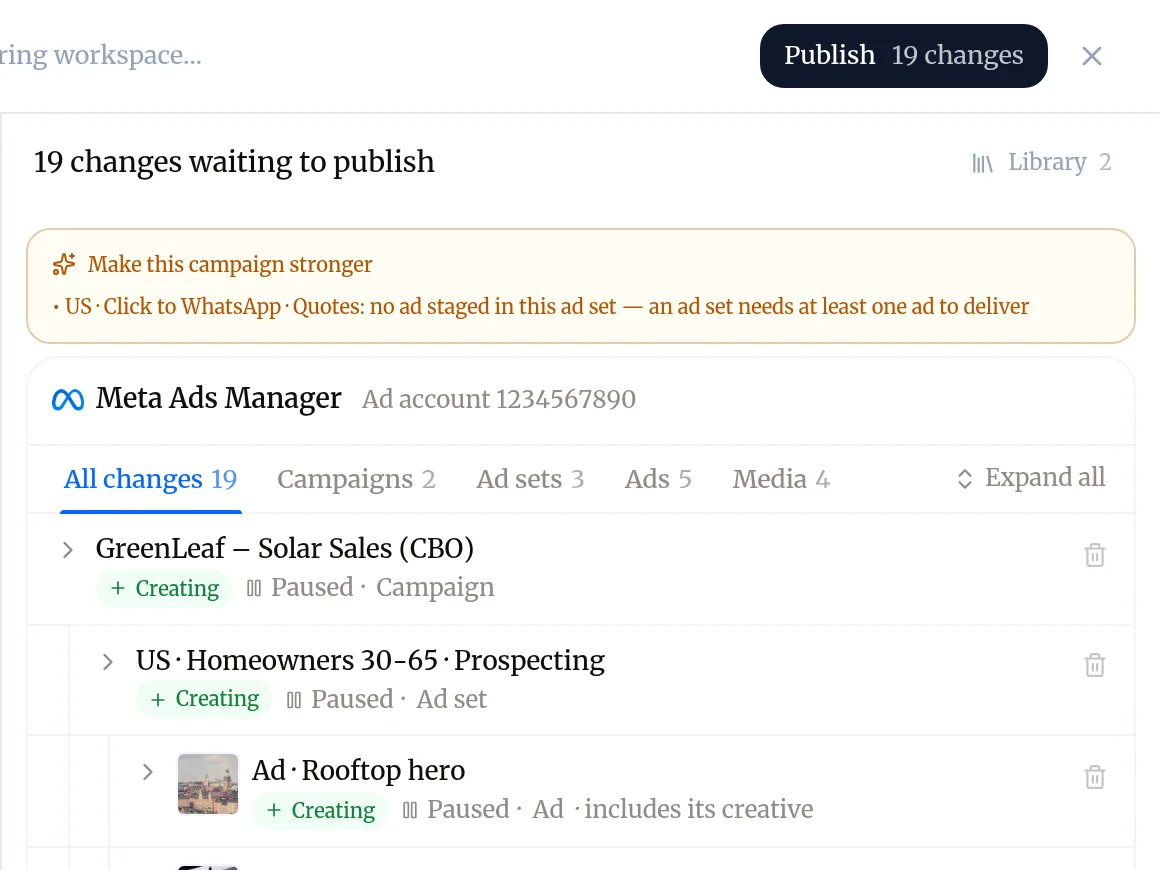
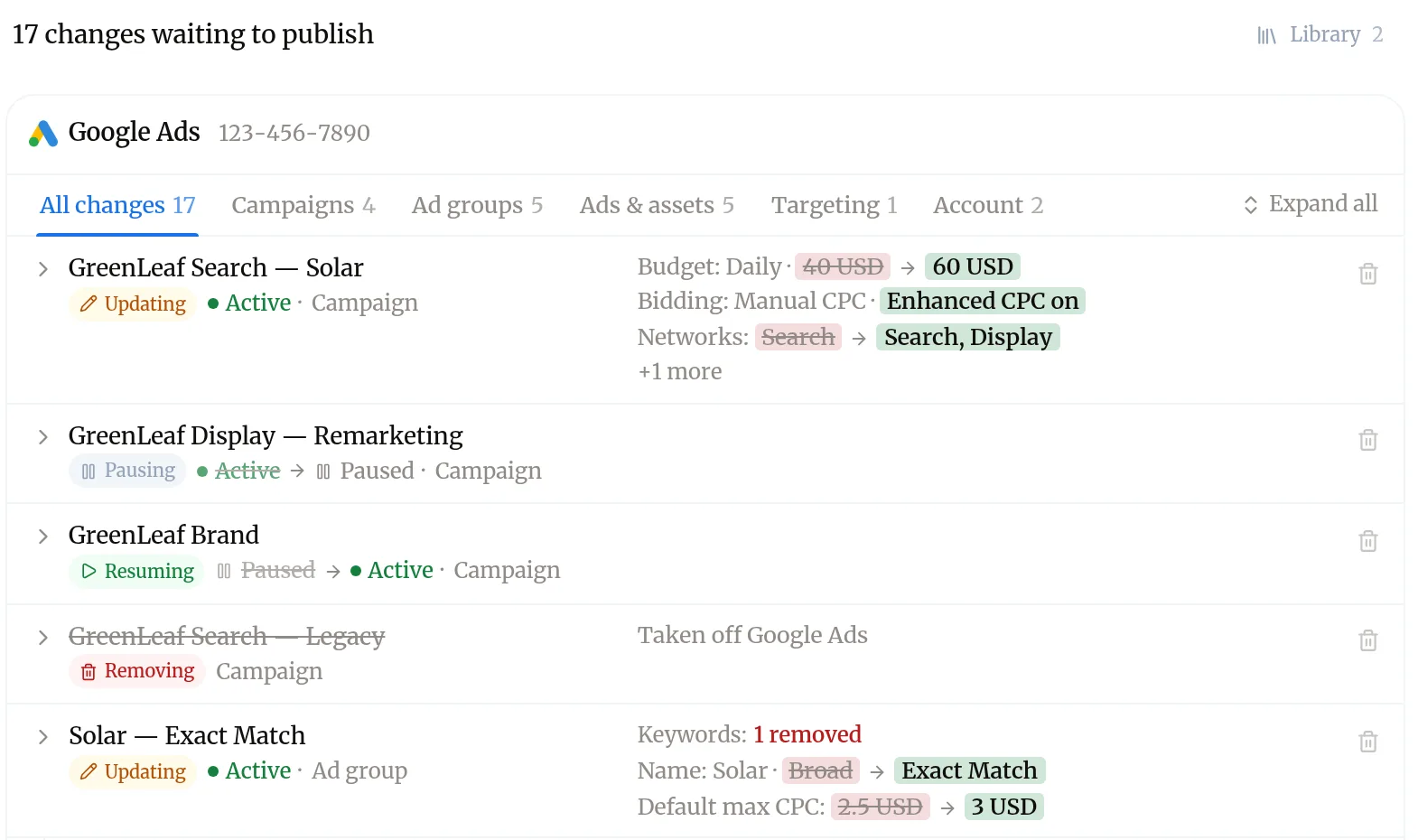
Each row says what will happen to it: Creating, Updating, Pausing, Resuming or Removing, and its status before and after.
-
Read the list from the top. Check the budgets first: once published they are real.
-
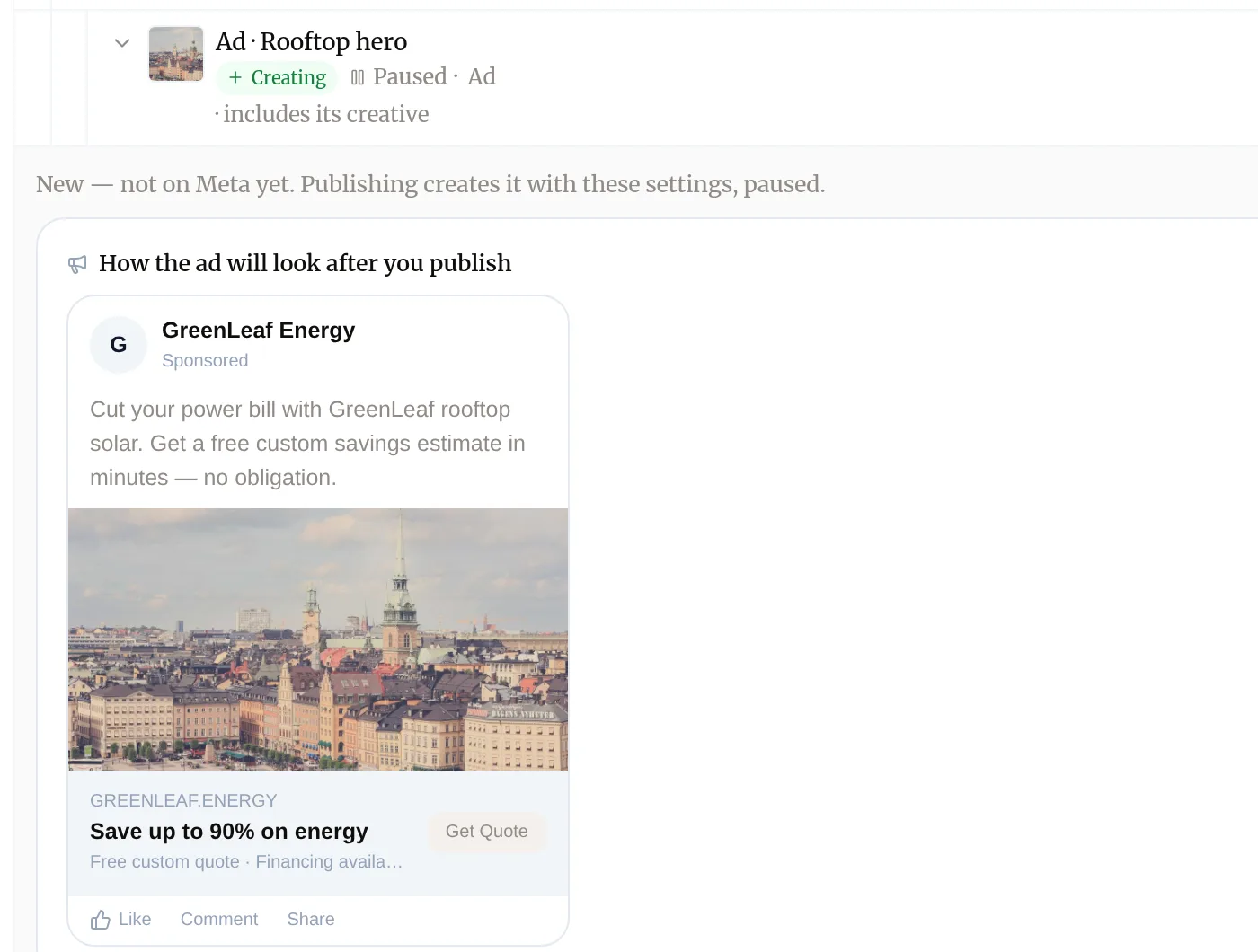
Open a change to see it in full. A new or edited ad shows How the ad will look after you publish.
-
For a change to something already running, read the before and after values.
-
Read any notice at the top, such as Make this campaign stronger, which points out a gap like an ad set with no ads.
Change what Baker prepared
- Ask in the chat. “Make the daily budget 40 instead of 50” or “Use the second headline” updates the prepared change.
- Drop one change. Press the bin icon on its row. Anything built on it goes with it.
- Drop everything. Discard the chat. Nothing reaches the platform.
If you ask for a budget more than three times higher than the current one, Baker asks you to confirm the amount before it prepares it.
Publish
- Press Publish at the top of the chat. It says how many changes it carries, for example Publish 19 changes.
- Baker applies the changes to the ad account in order: campaigns first, then what sits under them.
- Each change then shows its result. If any failed, the chat says which and why: see When Publish finishes only part of the work.
What happens after Publish?
- The platform reviews new and edited ads before showing them, as it does for any ad.
- Baker’s copy of your results catches up within a few hours, and the change shows in your reports.
- To undo a change, ask Baker for the reverse change and publish it.
Try asking Baker
Create a Meta prospecting campaign for homeowners aged 30 to 65 in Spain, 50 euros a day, with three ads from my latest creatives. Keep it paused.
What happens when you publish
Every change in the chat applies to the real ad account. From then on it can spend money, and undoing it means new changes.
Troubleshooting
- If you see "LinkedIn changes fail at Publish with LinkedIn has not enabled Baker to make changes on this ad account yet."
- Nothing was changed on LinkedIn. Ask Baker's team in Requests or at support@withbaker.com to enable the ad account, then open the chat and publish again.
- If you see "Some changes applied and others failed."
- The chat lists each failed change with the platform's reason. Read the reasons, then follow the steps to finish a partly published change.
- If you see "Baker asks you to confirm a budget before preparing it."
- The new budget is more than three times today's. Check the amount; a cent or currency mix-up is the usual cause. Answer yes only if that is what you want.
- If you see "On Meta, Google Ads or LinkedIn, Baker says someone else changed the campaign after it prepared its change."
- Someone edited it in the platform's own tools, or another chat published first. Ask Baker to read the campaign again and redo the change on top of what is live.
- If you see "Baker says lead ads, catalogs or Page posts are not switched on."
- Those Meta features are switched on per company by Baker's team. Ask in Requests, then reconnect Meta. The rest of the work carries on.
Questions
Does Baker ever change my ad accounts without me?
Not from a chat. Every change waits until someone presses Publish. A routine can prepare changes on a schedule too, and they wait for you in the same way unless someone switched on Auto publish for that routine.
Are new campaigns live as soon as I publish?
New campaigns and ads are usually prepared paused, unless you ask for them to start at once, and Baker says so when something will spend. The platforms also review new ads before showing them.
How do I undo a change I published?
Ask Baker for a new change that reverses it, such as pausing the campaign or putting the old budget back, and publish that. Discarding a chat only drops changes that were never published.
Can I publish only some of the changes?
Yes. Remove the ones you don't want with the bin icon on each change, or ask Baker to drop them, then publish the rest.
What if two chats change the same campaign?
On Meta, Google Ads and LinkedIn, Baker tells you in each chat which other chat has changes on the same campaign, so you can decide which one to keep before you publish.
Next steps
- Publish your changes What Publish sends live, in what order, how to check it worked, and how to discard a chat's changes instead.
- Fix a publish that only partly finished What it means when your pages went live but an ad or tracking change didn't, and how Fix this repairs it in the same chat.
- Make ad creatives with Baker Ask Baker for static or video ads, review each version in the chat, find them on the Creatives page and put them in your campaigns.
Was this helpful?
Thanks. We read every answer.