Read your results in Measure and Reports
- Updated
- 3 min read
- Every plan
- Who can do this: admins, members and viewers
 Open in ChatGPT
 Open in Claude
In short
Baker shows results in two places. Measure has ready-made views of your landing pages, ads, funnel and events, with no setup. Reports are live dashboards Baker builds for you in a chat: ask for one, review the preview, press Publish, and it opens from the Reports page and fetches newer numbers when you open it.
By the end, you know where each number lives and how to get a Report built for the question you need answered.
Before you start
- At least one published landing page, or a connected ad account, for there to be numbers.
- To ask for a new Report, an admin or member role. Viewers can open published Reports.
Where are my numbers?
- Measure (in the sidebar) is the built-in view of your results. No setup needed.
- Reports (in the sidebar) holds the live dashboards Baker built for you.
- Each landing page and each Form also has its own page in Landings with its numbers.
What is in Measure?
Measure has a tab for each question, and the date menu at the top right, such as Last 30 days, sets the period.
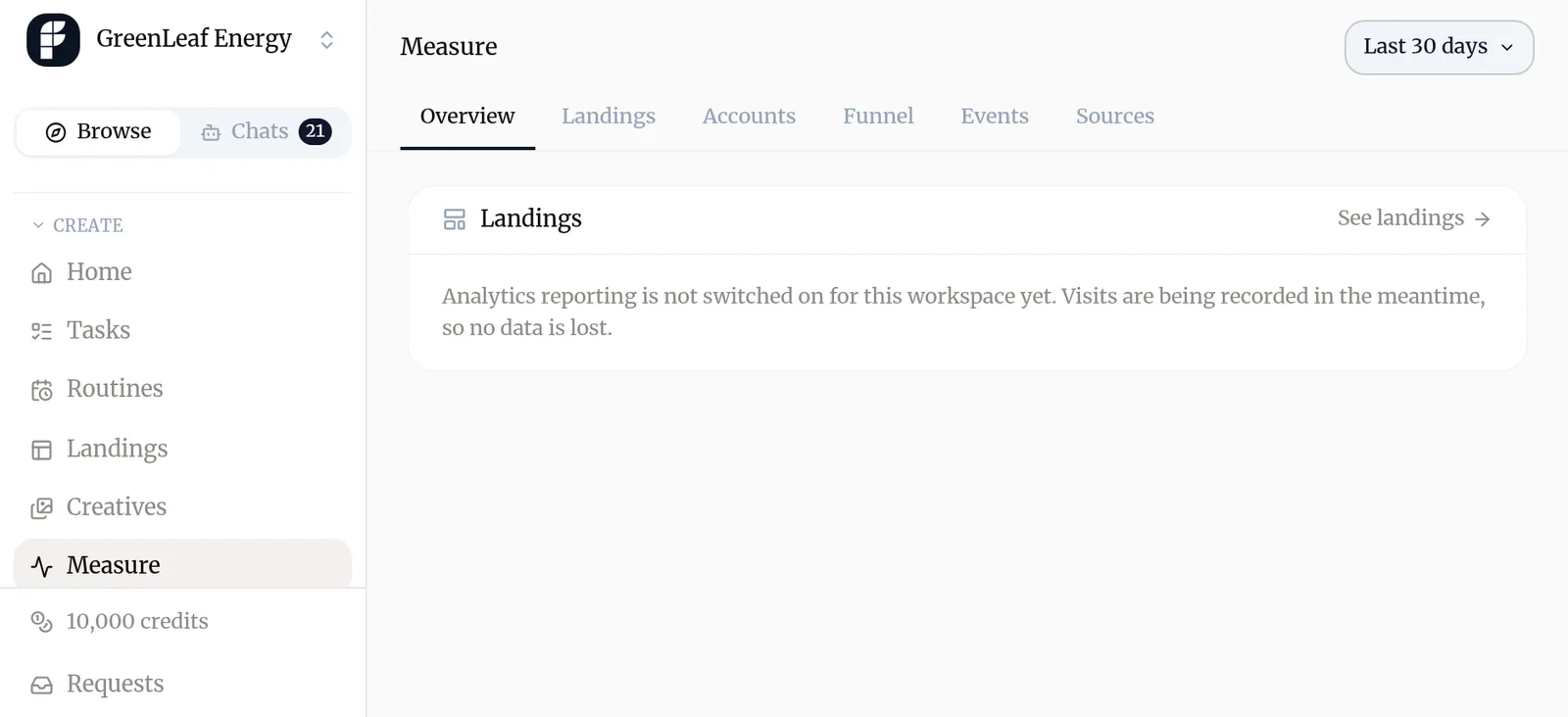
- Overview: a little of everything, with the headline numbers for your pages and ads and what needs attention.
- Landings: who is on your pages now, how many came, which pages, from where and what counted.
- Ads: how your ads perform across your connected ad platforms. Shown once an ad account is chosen.
- Accounts: which companies your LinkedIn ads reached and the CRM deals they influenced. Shown while LinkedIn is connected.
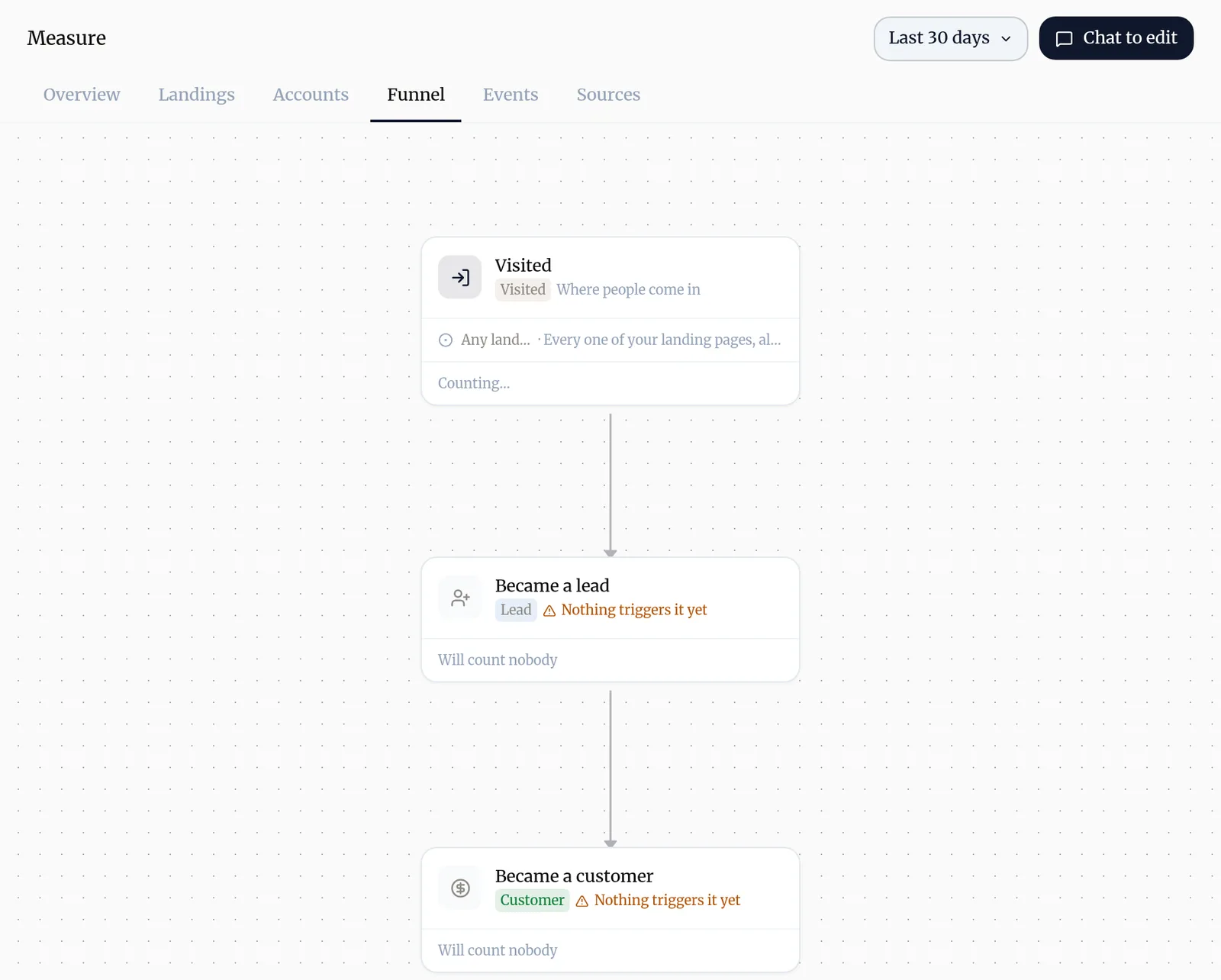
- Funnel: the steps of your business, from visit to lead to customer, and what counts someone at each step.
- Events: every event as it arrived, newest first. The place to look when a number above surprises you.
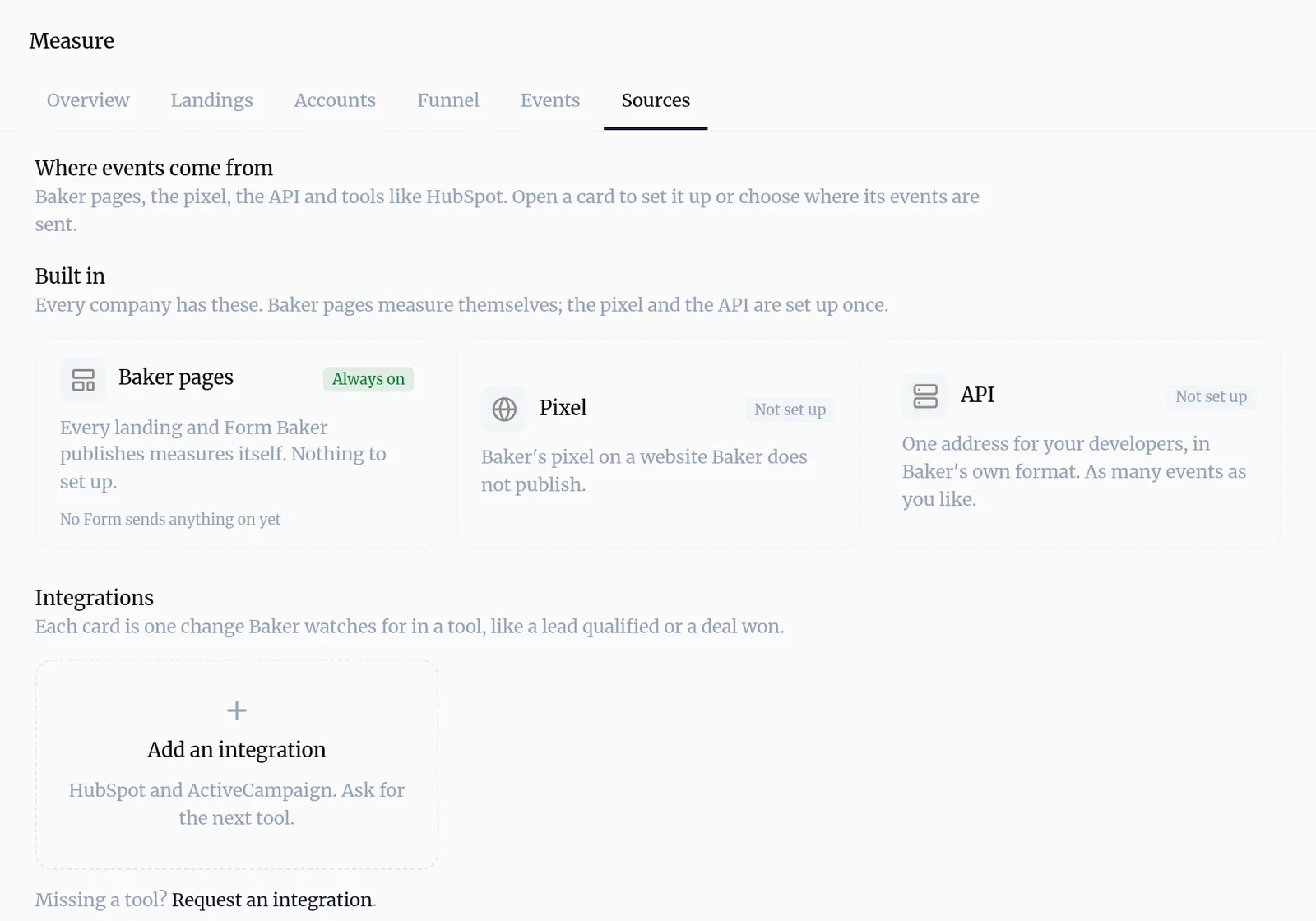
- Sources: where events come from: your Baker pages, Baker’s pixel on your own website, your own systems and tools like HubSpot.
What is a Report?
A Report is a live dashboard Baker builds in a chat to answer a question Measure doesn’t, such as cost per lead by channel each week, or your top searches against paid keywords. It reads the sources you have connected, keeps its numbers current on its own, and is visible only inside Baker until you share it.
The Reports page lists them under Live Reports. Documents holds the files Baker made for you, such as proposals or exports.
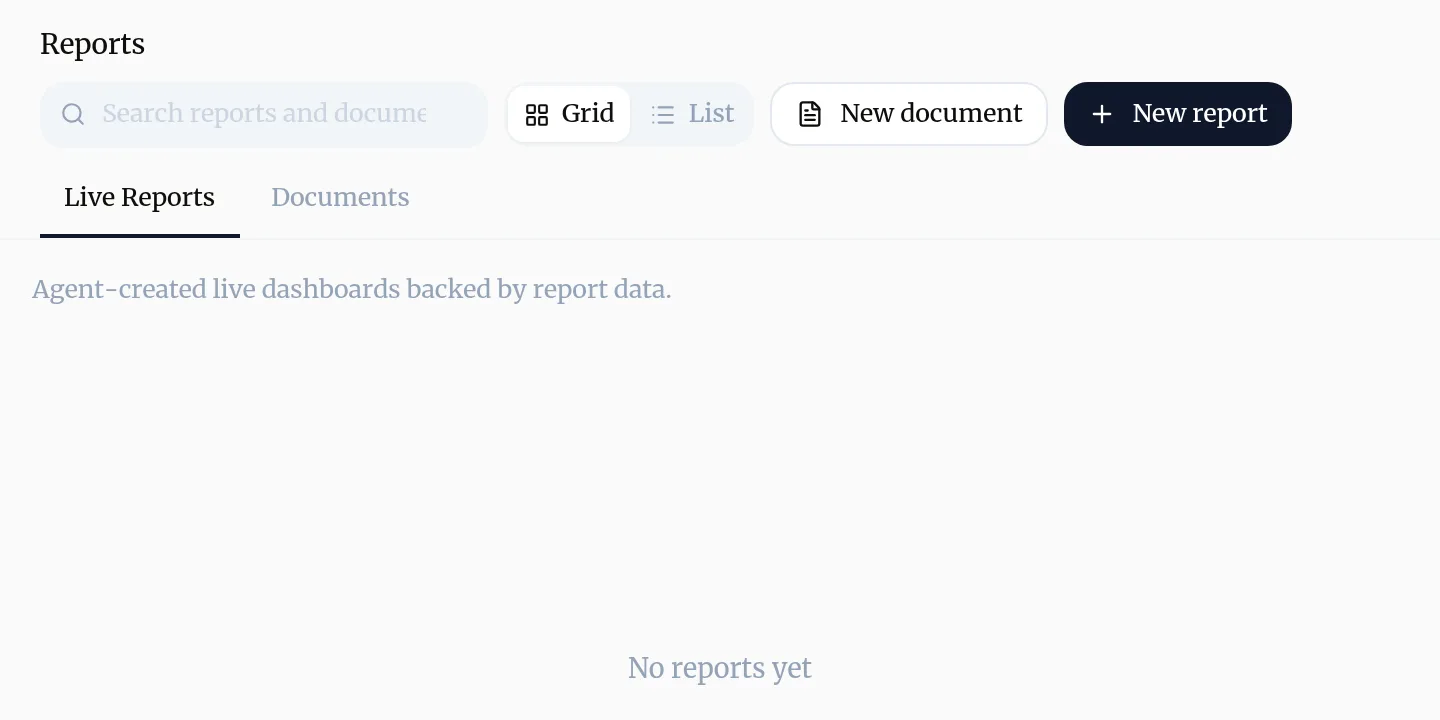
Each Report shows:
- Status: Draft, Active, Error or Archived, and below it Published, Not published yet or Publishing….
- Task: the chat that made it.
- Updated: when it last changed.
Get a new Report
- On the Reports page, press New report. A new chat opens.
- Describe the question, the numbers you want and how often they should update, for example daily.
- Baker builds the Report and shows a preview in the chat. Ask for changes until it is right.
- Press Publish. The Report appears in Reports for your team.
Open and read a Report
- On the Reports page, open the Report’s ⋯ menu and choose Open report, or click its name.
- The bar at the top says when the numbers were last synced. Press Refresh now for the latest.
- If newer numbers arrive while you read, press Show new numbers. The page never reloads by itself.
From the same menu: Share link sends it to people outside Baker (share a report), Edit in a chat opens a chat to change it, and Delete report opens a chat to remove it, which applies when you press Publish. Viewers can open Reports but not share or delete them.
Get help
Write to support@withbaker.com or use the contact page. No login needed, and we reply within 24 hours.
Try asking Baker
Build a weekly report of leads and cost per lead by channel, comparing Meta, Google Ads and LinkedIn with last week.
What happens when you publish
The Report becomes visible on the Reports page, where your team can open it and share it. It is not a public page.
Troubleshooting
- If you see "Open report is greyed out and says Opens once it is published."
- The Report is still in its chat. Open that chat and press Publish, or open the preview from the chat in the meantime.
- If you see "A Report shows Error."
- Use Edit in a chat from its menu and tell Baker what looks wrong. A source that failed is shown as incomplete, never as zero.
- If you see "Measure shows no numbers for a new company."
- Numbers start once a landing page is published or an ad account is chosen. Ads appears in Measure only after an ad account is chosen.
- If you see "A number in Measure is not what you expected."
- Open Measure → Events to see every event exactly as it arrived, and Measure → Funnel to check what each step counts.
Questions
What is the difference between Measure and a Report?
Measure is the same for every company and needs no setup. A Report is built for your question, from any source Baker can read, such as your ad platforms, Google Analytics, Search Console or your CRM.
How fresh are the numbers in a Report?
A Report's numbers are at most 15 minutes old by default, or whatever you asked for. When you open it, Baker fetches newer numbers if needed. Your team can press Refresh now. An open Report never reloads under you; it offers Show new numbers instead.
Can a Report change anything in my accounts?
No. A published Report only reads. It cannot change ads, tags or anything else.
Can I send a Report to someone without a Baker login?
Yes, with a share link. See share a report.
Next steps
- Share a report with someone outside Baker Create a read-only link to a published Report, protect it with a password, choose when it expires, see how often it was opened, and turn it off.
- Connect Google Analytics to Baker Connect your GA4 property, choose it, add the GA4 tag to your landing pages, and disconnect, with what happens to your data on each side.
- Publish your changes What Publish sends live, in what order, how to check it worked, and how to discard a chat's changes instead.
Was this helpful?
Thanks. We read every answer.