Publish your changes
- Updated
- 6 min read
- Every plan
- Who can do this: admins and members
 Open in ChatGPT
 Open in Claude
In short
Nothing Baker prepares in a chat reaches your site, your ads or any other platform until someone presses Publish at the top right of the chat. Publish sends every change the chat holds together: pages go live first, then ad and tracking changes are applied on each platform. The chat then closes. To throw the work away instead, discard the chat and every change is reverted.
By the end, you know what Publish sends, how to follow it until everything is live, and how to discard work you don't want.
Before you start
- An admin or member role. Viewers can read a chat but cannot publish or discard it.
- Review the changes listed on the right of the chat. What you see there is what Publish sends.
Every chat works on a private copy of your pages, ads and settings. You see everything it prepared, and nothing changes for your visitors or on your ad accounts until someone presses Publish.
Where is the Publish button?
At the top right of the chat, on the same line as its name. It counts what it will send, for example Publish 1 change. Hover over it and it reminds you: Nothing is live until you publish.
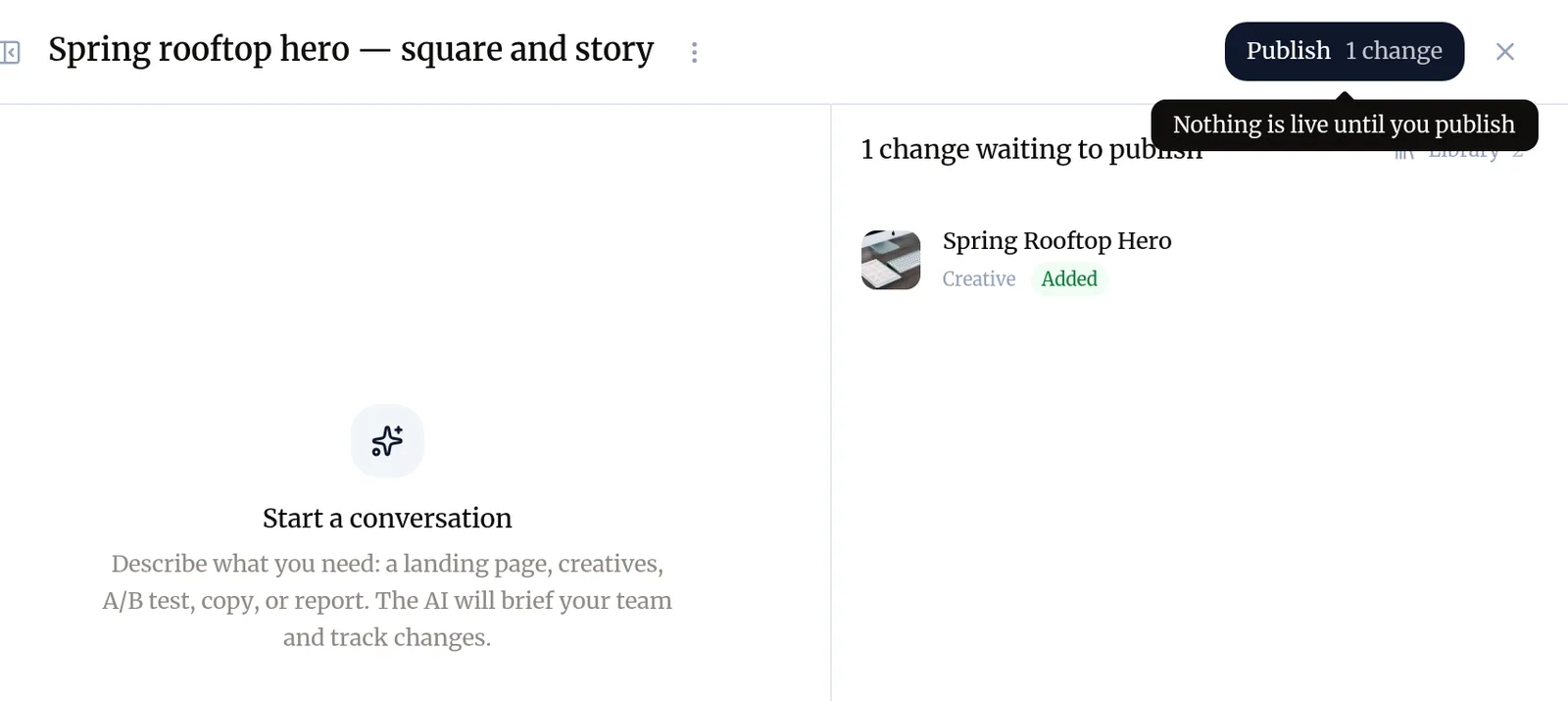
The button only appears once Baker has prepared something. If the chat has nothing left to publish, it reads Complete instead.
You can also publish from To publish, which lists every item waiting from any chat, Slack thread or routine, and, in some cases, from Slack itself (see below).
What does Publish send?
Everything listed on the right of the chat under changes waiting to publish:
- Pages, Forms, Knowledge, Brand and creatives. Pages go live on your site. A creative is published as the version you chose, or the last version the chat showed you; Publish never makes a new one.
- Reports and documents. They become available in Baker, under Reports. Publishing a report does not put it on the public web.
- Tasks and routines the chat created or changed.
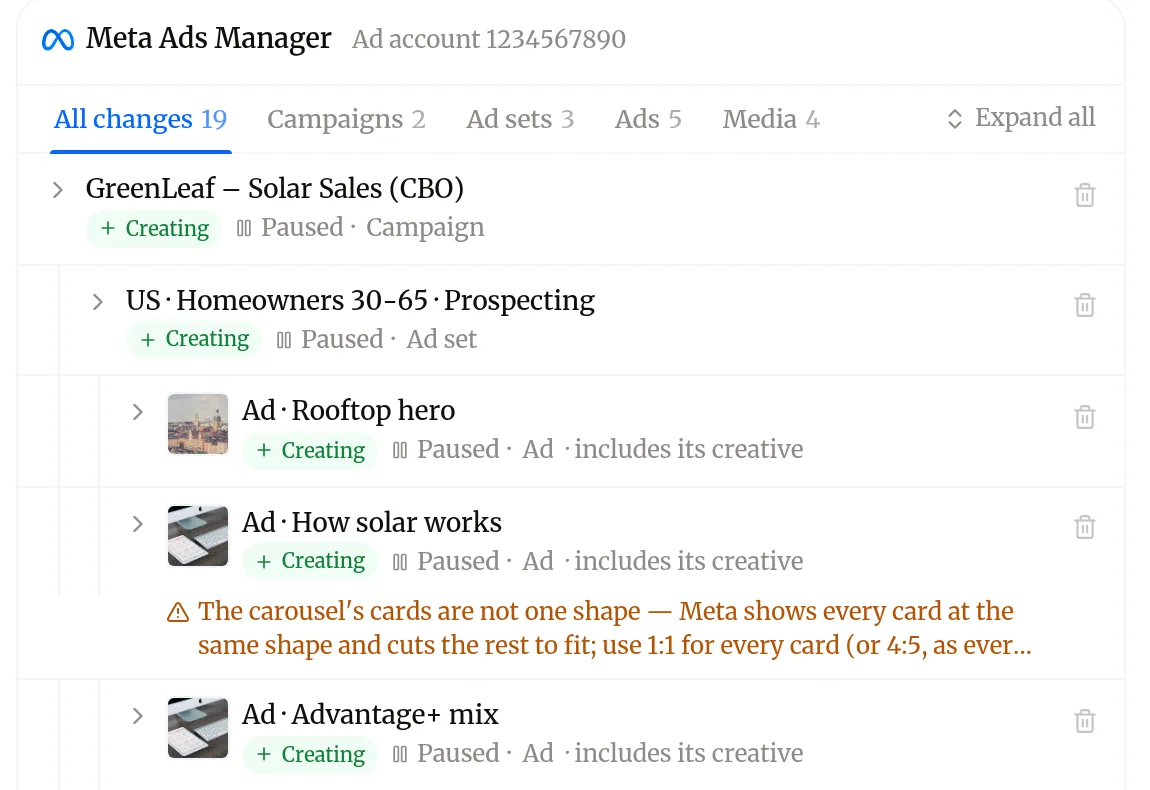
- Ad changes on Meta, Google Ads, LinkedIn, X and ChatGPT Ads: new campaigns, ad sets and ads, budget and status changes, audiences.
- Tracking changes in Google Tag Manager and Google Analytics, and the tags on your pages.
- Starting an A/B test. See Run an A/B test on a page.
How do I know it worked?
Pressing Publish adds a notice to the conversation that follows each part:
- Publishing, with a line per part: your pages show Going live, ad and tracking changes show After your pages are live, then Sending.
- Each part turns to Live or Sent as it lands. Pages usually take a few minutes.
- When everything is out, the notice reads Published. and names what went out.
The pill beside the chat’s name tells the same story: Publishing, then Completed. If one change did not go through, the notice says Published, but one change didn’t go through., the pill reads Partly published, and a Fix this button appears. That is covered in When a publish only partly finishes.
What happens to the chat after Publish?
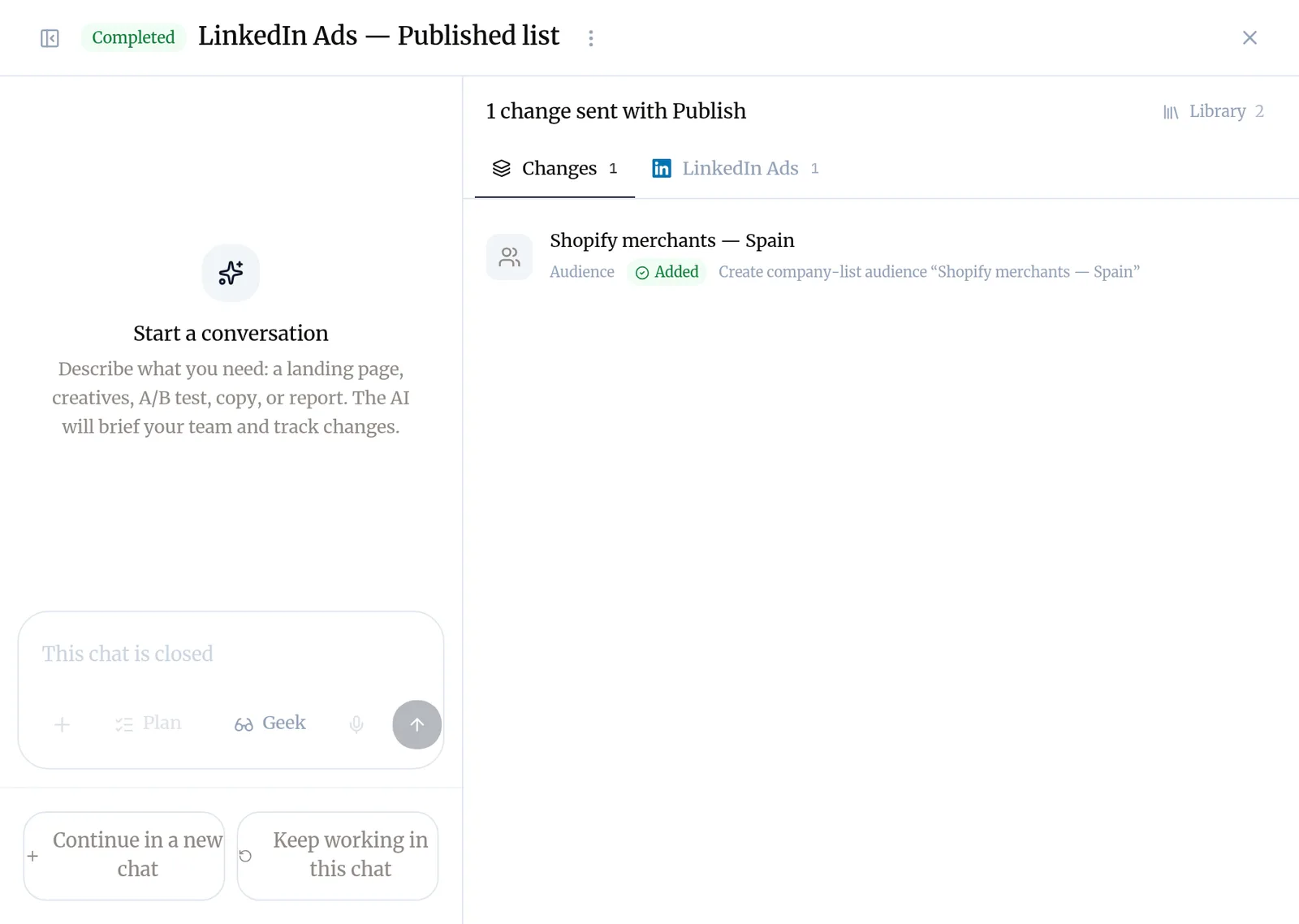
Publish finishes the chat. It moves to Completed, its message box reads This chat is closed, and the panel lists what it sent. Two buttons let you go on:
- Keep working in this chat reopens it. What you prepare next waits for its own Publish.
- Continue in a new chat starts a fresh chat that already knows what this one did.
How do I discard a chat instead?
-
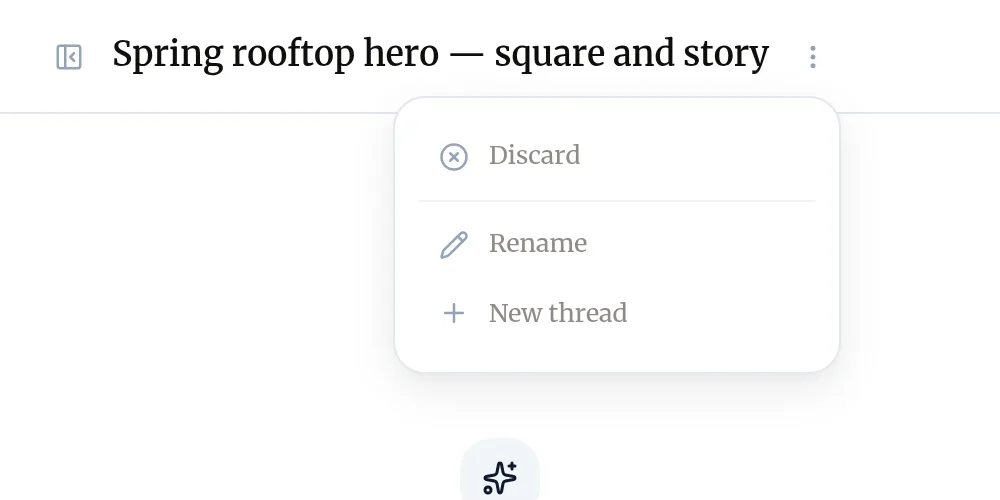
Open the menu (⋮) beside the chat’s name.
-
Choose Discard.
-
Read the confirmation. It says how many unpublished changes it reverts, and lists anything that stays because it was already applied.
-
Press Discard.
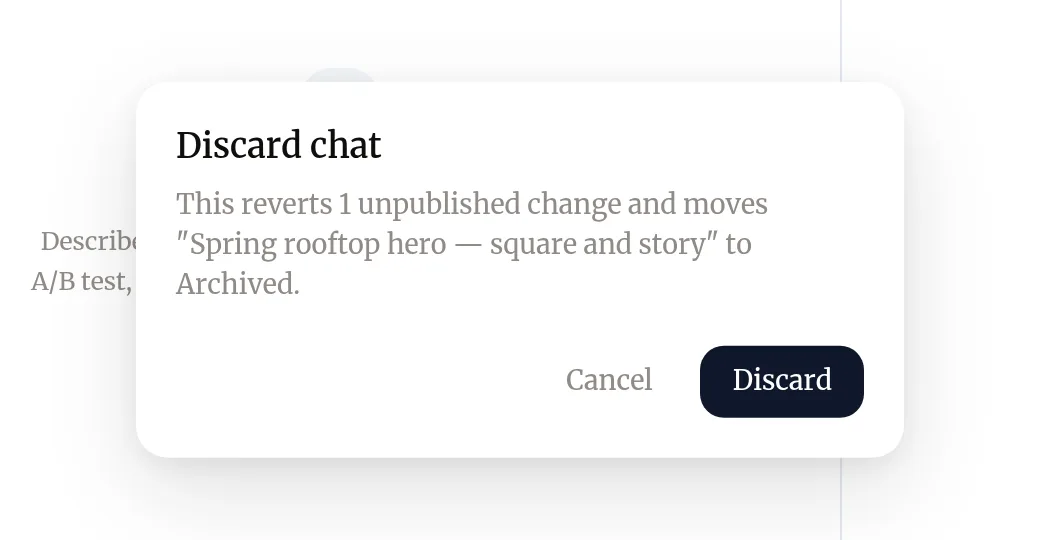
Nothing the chat prepared reaches your site or your accounts. Pictures and videos the chat saved to your library are removed with it. To remove only one change, use the bin beside it in the list instead.
A chat nobody touches for 30 days is discarded for you in the same way.
What is “Already applied”?
A few things cannot wait for Publish, because Baker needs them inside the same chat. They happen at once and are marked Already applied in the list, so the count on the Publish button never includes them. They include:
- A password or key you hand Baker, kept in Credentials.
- Images and clips you generate in Studio.
- Brands you follow, and social accounts or review sites you add as sources.
- A setup link Baker makes for you to send.
- An empty Google Sheet Baker creates in your Google account, for a Form’s leads or for the deals your LinkedIn Account insights read.
- Posts you add to your library by their link, and pages you save as references.
- A download of your published pages.
- A custom connection Baker switches off because it misbehaves.
- Library housekeeping, such as a new media tag or a removed testimonial.
Connecting an account happens the moment you connect it, too. These stay if you discard the chat. Pictures and videos a chat saves to your library are different: they join your library only when the chat is published.
Can a routine publish on its own?
By default, every run of a routine waits for you like any chat. To let one publish its own work:
-
Open Routines and choose the routine.
-
Under When a run finishes, tick Publish its work on its own.
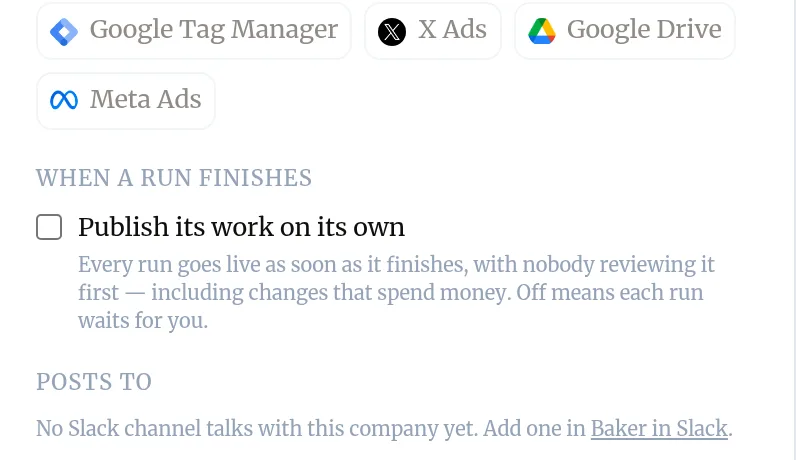
From then on, every run goes live as soon as it finishes, with nobody reviewing it first, including changes that spend money. Only a person can switch this on, and it publishes on that person’s authority: if they lose write access to the company, runs wait for review again. See Routines.
Can I publish from Slack?
Yes, when every change is in Baker itself, such as ad, tracking or task changes. The card Baker posts in the channel then offers Publish:
- Press Publish on the card. Baker answers only to you with what will change and where.
- Confirm. Baker publishes and reports the result in the thread.
When a change involves pages or other files, the card offers Open in Baker instead, and you publish there. You need your Slack account linked to Baker and write access to the company. See Baker in Slack.
What happens when you publish
Pages, Forms, Knowledge, Brand and creatives go live within minutes. Ad, Tag Manager and Google Analytics changes are applied on each platform right after your pages are live, for real. The chat moves to Completed.
Troubleshooting
- If you see "The button reads Complete instead of Publish."
- The chat has nothing left to publish; what it did was already applied. Press Complete to close it.
- If you see "The notice says "Published, but your pages haven't gone live yet.""
- Your changes are saved. They go live with the next successful publish, and ad and tracking changes wait for the pages so nothing points at a page that is not there. If it stays, ask Baker's team through Requests.
- If you see "The notice says "Published, but one change didn't go through.""
- Everything else is live. Press Fix this and follow When a publish only partly finishes.
- If you see "You cannot discard a chat."
- A chat cannot be discarded while it is publishing, because its pages may already be on their way. Wait for the publish to finish.
Questions
Is anything live before I press Publish?
No, with a short list of exceptions marked Already applied in the chat, such as a password you hand Baker or images you generate in Studio. Pages, ads, tracking, tasks and routines all wait for Publish.
Are ad changes a test or a preview?
No. Once your pages are live, Baker applies the ad changes to your real ad accounts, exactly as you reviewed them. Before you publish, the confirmation tells you how many changes go to each account.
Can I publish only some of the changes?
Publish sends everything the chat holds. Remove the changes you don't want from the list first, or ask Baker to take them out, then publish.
Can I keep working after I publish?
Yes. Press Keep working in this chat to reopen it, or Continue in a new chat to start fresh with what this one knew. What you prepare next waits for its own Publish.
Can a routine publish its own work?
Only if a person switches on Auto publish for that routine. Baker can never switch it on by itself.
Next steps
- Fix a publish that only partly finished What it means when your pages went live but an ad or tracking change didn't, and how Fix this repairs it in the same chat.
- Find out why a change isn't live The six reasons a change you made with Baker is not on your site or ad account yet, and what to do about each.
- Share unpublished work for review Send a client a link to a page before it is published, let them comment on it without an account, and turn their comments into changes.
Was this helpful?
Thanks. We read every answer.