Connect LinkedIn Ads to Baker
 Connect LinkedIn Ads to Baker
- Updated
- 5 min read
- Every plan
- Who can do this: admins and members
 Open in ChatGPT
 Open in Claude
In short
Open Brain → Integrations in Baker, press Connect on the LinkedIn card, sign in to LinkedIn, accept the permissions and choose the ad accounts Baker may use. Baker can read them at once. Before Baker can change an ad account, Baker's team has to enable that account with LinkedIn, so send a request with your ad account ID before your first launch, or Publish fails.
By the end, your LinkedIn ad accounts are connected, enabled for changes, and ready for Baker to prepare campaigns you publish.
Before you start
- A LinkedIn ad account and a LinkedIn login with a role on it that can change campaigns, not Viewer or Creative manager.
- The ad account's ID, shown in Campaign Manager and on the LinkedIn card once connected.
- An admin or member role in Baker, or a setup link sent by someone who has one.
What does the LinkedIn connection do?
Connecting LinkedIn lets Baker work on your B2B campaigns:
- Read. Campaigns, ads, lead gen forms and results, including by job title, seniority, industry and company.
- Prepare changes. Campaigns, ad sets, ads, budgets, bids, targeting, company exclusions, audiences and lead gen forms, shown in a chat as Campaign Manager would show them.
- Apply them when you publish. Nothing reaches LinkedIn until someone presses Publish. Then the changes are real and can spend money.
- Account insights. Which companies your ads reach, matched with the deals in your CRM.
The LinkedIn Insight Tag on your landing pages is a separate part of the same card: see tracking tags.
Before you begin
You need:
- A LinkedIn ad account.
- A LinkedIn login with a role on that ad account that can change campaigns. A Viewer or Creative manager can let Baker read, but publishing is refused. To boost a company page’s posts, the login also needs a super admin, content admin or Sponsored Content poster role on the page.
- An admin or member role in Baker. Viewers can’t connect accounts.
If someone else holds the LinkedIn access, send them this message, or send them a setup link so they can connect without a Baker login:
Hi! We use Baker to prepare and review our LinkedIn ads. Could you connect our LinkedIn ad account? Sign in to LinkedIn from the link, accept the permissions and tick our ad account. Baker can’t change anything until one of us reviews it and presses Publish.
Connect LinkedIn
- In Baker, open Brain → Integrations and stay on the Platforms tab.
- Find the LinkedIn card under Advertising.
- Next to LinkedIn Ads account, press Connect. A LinkedIn window opens.
- Sign in to LinkedIn with the login that has a role on your ad account.
- LinkedIn lists the permissions Baker asks for. Accept them.
- The window closes and Baker opens LinkedIn Ad Accounts.
You can also connect from a chat: when Baker needs LinkedIn, it shows a card that connects without leaving the conversation.
Choose the ad accounts
- In LinkedIn Ad Accounts, tick each ad account Baker may use.
- Press Save changes.
Baker reads and changes only the accounts you ticked. To change them later, press Ad Accounts on your connection in the LinkedIn card.
Get the ad account enabled for changes
LinkedIn lets Baker change only the ad accounts Baker’s team has added on LinkedIn’s side. Without it, reading works and preparing changes works, but Publish fails with LinkedIn has not enabled Baker to make changes on this ad account yet, and nothing changes.
- Copy your ad account ID. It is the number shown under your connection on the LinkedIn card.
- In Baker, open Requests in the sidebar and press New request, or write to support@withbaker.com. Ask to enable that ad account for changes.
- Wait for Baker’s team to confirm. If you already published and it failed, open that chat and publish again.
Which permissions does Baker ask for?
| LinkedIn permission | In Baker | What Baker uses it for |
|---|---|---|
r_ads | See your ad accounts and campaigns | Reading the account before a change |
r_ads_reporting | See how your ads perform | Reports, alerts and Account insights |
rw_ads | Create and change your campaigns | Applying the changes you publish |
r_marketing_leadgen_automation | See your lead gen forms and their leads | Sending each new lead to your CRM, a sheet, an email or a webhook |
rw_conversions | Send conversions from your landing pages | Telling LinkedIn which clicks converted |
w_organization_social | Show your ad images | Showing your ads as people see them |
r_organization_social | See your page’s posts, to boost them | Turning a page post into an ad |
If an agency runs the account
If your agency set up partner access in Baker, your setup link shows these steps:
- Open LinkedIn Business Manager for your company.
- Click Partners.
- Enter the agency’s Business Manager ID and click Add partner.
- The agency accepts the request and lets you know.
- Click the agency among your partners and give it access to your company page and your ad accounts.
What does success look like?
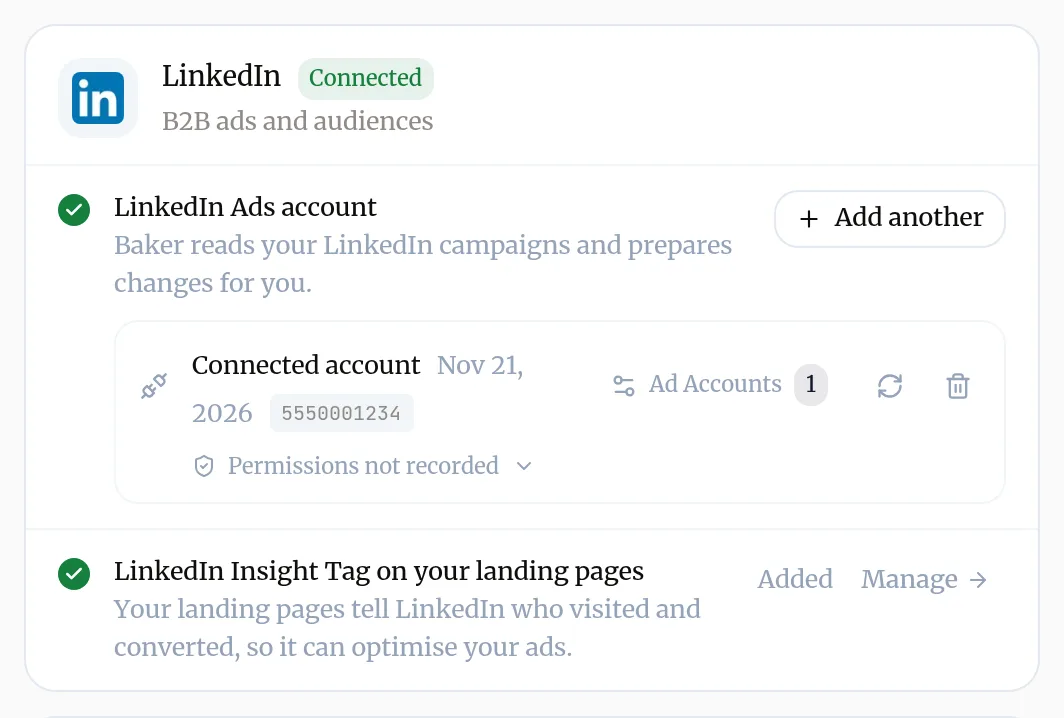
- The LinkedIn card shows Connected, the ad account ID and Ad Accounts with the number you chose.
- In a chat, ask “Which LinkedIn ad accounts can you see?” and Baker lists the ones you ticked.
- Baker’s team has confirmed the ad account is enabled for changes.
Use it
Ask Baker in a chat. For example:
- “Which job titles cost us the least per lead on LinkedIn last quarter?”
- “Exclude our current customers from the prospecting ad set. Here is the list.”
- “Build a lead gen campaign with a native form and send the leads to HubSpot.”
Baker prepares the changes and shows them before anything happens. Read them and press Publish. Step by step: Launch and change ads.
Disconnect LinkedIn
- Open Brain → Integrations and find your connection on the LinkedIn card.
- Press the bin icon (Disconnect account).
- Confirm with Disconnect.
What happens to your data?
On LinkedIn: nothing changes. Campaigns Baker published stay and keep running as they are.
In Baker: Baker deletes its sign-in, stops reading the account and stops refreshing its results. Reports, Account insights, lead routes and routines that rely on LinkedIn stop working until you connect again.
On LinkedIn’s side: Baker stays listed as an app on your login until you remove it in your LinkedIn settings.
Get help
Write to support@withbaker.com or use the contact page. No login needed, and we reply within 24 hours.
Try asking Baker
Which companies did my LinkedIn ads reach in the last three months, and which of them already have a deal in my CRM?
What happens when you publish
The LinkedIn changes you approved in the chat apply to your ad account at once, and can spend money from then on.
Troubleshooting
- If you see "Publish fails with LinkedIn has not enabled Baker to make changes on this ad account yet."
- Nothing was changed. Send a request in Requests or write to support@withbaker.com with your ad account ID. Once Baker's team confirms, open the chat and publish again.
- If you see "Publish is refused because the connected login lacks a role."
- The login that connected LinkedIn is a Viewer or Creative manager on the ad account. Give it a role that can change campaigns in Campaign Manager, or reconnect with a login that has one.
- If you see "A Thought Leader ad fails even though the author approved the post."
- The connected login needs a super admin, content admin or Sponsored Content poster role on the company page. Give it that role, or reconnect with someone who has it.
- If you see "The card says the sign-in no longer works."
- Press Reconnect and sign in to LinkedIn again with the same login.
Questions
Why can Baker read my LinkedIn account but not change it?
LinkedIn only lets Baker change the ad accounts Baker's team has added on LinkedIn's side, whatever your own role. Reading works without it, so ask for it before your first launch.
Can a client connect LinkedIn without a Baker login?
Yes. Send them a setup link. They sign in to LinkedIn from it and the ad accounts connect to your company in Baker.
Does Baker see ad accounts I did not choose?
No. Baker reads and changes only the ad accounts you ticked. Change the choice at any time from Ad Accounts on the card.
When does Account insights start showing companies?
Baker starts reading the companies as soon as you choose an ad account, and refreshes them every night. A large account's history can take until the next night to fill in.
Next steps
- Launch and change ads with Baker Ask Baker for a campaign or a change, review every change as the ad platform would show it, and publish it to Meta, Google Ads, LinkedIn, X or ChatGPT Ads.
- Reconnect an account when Baker asks Why Baker asks you to sign in to a platform again, how to reconnect from Integrations or a chat, and what a reconnect keeps.
- Ask someone else to connect an account with a setup link Send a client or colleague a setup link so they can connect the accounts they hold, with no Baker login, and give your agency partner access.
Was this helpful?
Thanks. We read every answer.