Connect GoHighLevel to Baker
 Connect GoHighLevel to Baker
- Updated
- 4 min read
- Every plan
- Who can do this: admins and members
 Open in ChatGPT
 Open in Claude
In short
Open Brain → Integrations in Baker, press Connect on the GoHighLevel card, sign in to GoHighLevel, choose the client account and allow Baker. Then ask Baker in a chat for a Form that sends its leads there, and publish. Each lead becomes a contact, with a business and an opportunity when you ask for them. Baker charges nothing extra; you need your own GoHighLevel subscription.
By the end, a GoHighLevel client account is connected and your Forms can send their leads and bookings to it.
Before you start
- A GoHighLevel subscription with the client account you want to connect.
- A GoHighLevel user who can open that client account and allow apps on it.
- An admin or member role in Baker, or a setup link sent by someone who has one.
What does the GoHighLevel connection do?
- Leads as contacts and opportunities. Each lead from a published Form creates the contact (or updates it when the email is already there), creates its business, links the two and opens an opportunity in the pipeline and stage you choose. Your custom fields can be filled too.
- Bookings on your calendars. A GoHighLevel Calendar step shows one of the client account’s calendars inside a Baker Form.
- Your GoHighLevel forms on Baker pages. A GoHighLevel Form step places a form you built in GoHighLevel on a landing page.
Baker changes nothing in GoHighLevel outside the leads your Forms send.
Before you begin
- A GoHighLevel subscription with the client account you want to connect. Baker charges nothing extra for the connection.
- A GoHighLevel user who can open that client account and allow apps on it.
- An admin or member role in Baker. Viewers can’t connect accounts.
If someone else holds the GoHighLevel access, send them a setup link and this message:
Hi! We use Baker to build our landing pages and send their leads to GoHighLevel. Could you connect our client account from this link? Sign in to GoHighLevel, choose the client account and allow Baker; it takes a minute. Baker only creates contacts, businesses and opportunities from our forms.
Connect a client account
-
In Baker, open Brain → Integrations and stay on the Platforms tab.
-
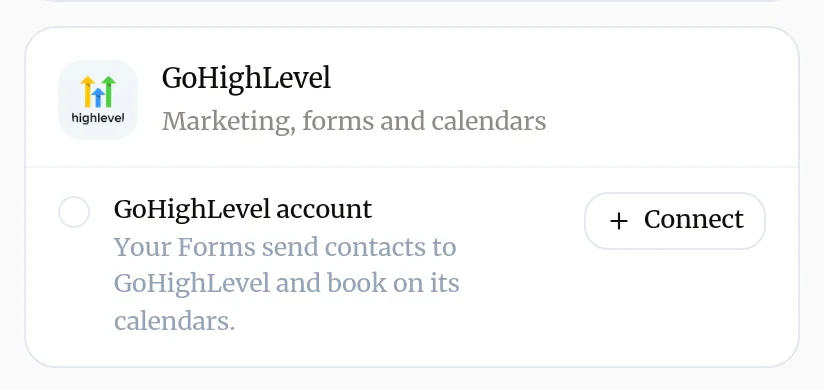
Find GoHighLevel under CRM & sales.
-
Next to GoHighLevel account, press Connect. A GoHighLevel window opens.
-
Sign in to GoHighLevel and choose the client account to connect.
-
Review the permissions and allow Baker. The window closes and the card shows the client account as connected.
To connect another client account, press Add another on the same card.
Which permissions does Baker ask for?
| Permission | What Baker uses it for |
|---|---|
| See your contacts, add and update contacts | Creating the lead’s contact, or updating it when the email exists |
| Add and update businesses | Creating the lead’s company |
| See how your records are linked, link contacts to opportunities | Linking the contact to its business and opportunity |
| See your opportunities, add and update opportunities | Listing pipelines and stages, and opening the lead’s opportunity |
| See your custom fields | Offering custom fields when mapping the Form |
| See your calendars | Listing calendars for a booking step |
| See your forms | Listing forms and their fields for a form step |
What does success look like?
- The GoHighLevel card in Brain → Integrations shows the client account with a green check.
- In a chat, ask “Which GoHighLevel calendars can I use?” and Baker lists them.
Send a Form’s leads to GoHighLevel
- In a chat, ask Baker for a Form that sends its leads to GoHighLevel, and say which pipeline and stage the opportunity should open in.
- Baker maps the Form’s answers to the contact, business, opportunity and custom fields.
- To add a booking, ask for a GoHighLevel Calendar step and name the calendar. Earlier answers can fill in the booking form.
- Check the Form in the preview. A submission there shows what would be sent, and sends nothing.
- Press Publish. From then on each new lead arrives in the client account.
To prove it works end to end, send a test lead.
Disconnect GoHighLevel
- Make sure no Form still uses the client account. If one does, ask Baker in a chat to remove GoHighLevel from it and publish. Baker refuses to disconnect an account a Form still uses.
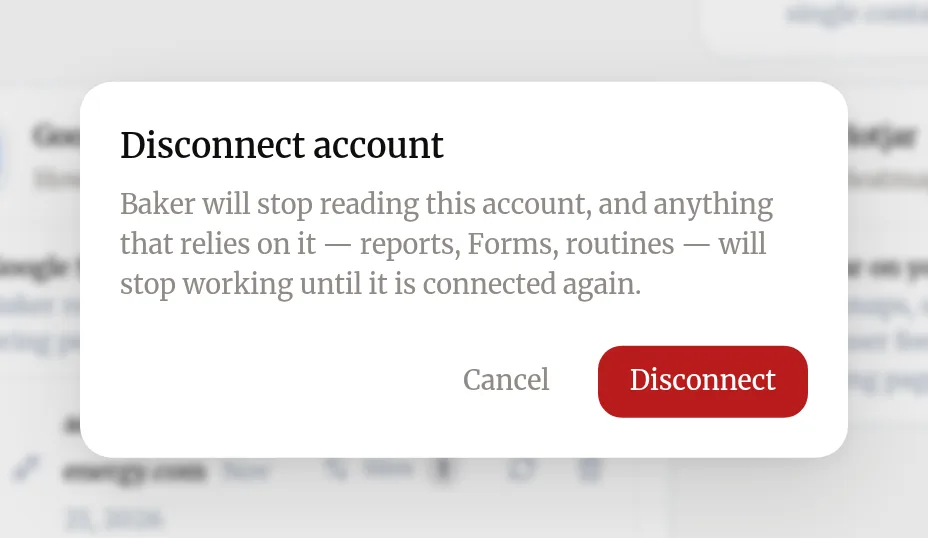
- Open Brain → Integrations, find the client account on the GoHighLevel card and press the bin icon (Disconnect account).
- Confirm with Disconnect.
Disconnecting in Baker does not remove Baker from GoHighLevel. To do that, remove Baker from the apps installed on that client account.
What happens to your data?
In GoHighLevel: contacts, businesses and opportunities your Forms created stay in the client account.
In Baker: Baker deletes its sign-in and stops reading the client account. The Form answers Baker collected are kept, encrypted, for 90 days from each submission.
If you remove Baker in GoHighLevel first: within a day the GoHighLevel card in Baker asks you to reconnect, and any Form still sending there shows Couldn’t send on each submission. The answers stay in Baker.
Get help
Write to support@withbaker.com or use the contact page. No login needed, and we reply within 24 hours.
Try asking Baker
Build a Form for my solar landing that sends each lead to GoHighLevel as an opportunity in the "New leads" stage, then shows my "Site visit" calendar.
What happens when you publish
Your Forms start sending each new lead to the GoHighLevel client account. Leads submitted before you publish are not sent.
Troubleshooting
- If you see "The GoHighLevel card says the sign-in expired or needs reconnecting."
- Press Reconnect on the card and allow Baker again for the same client account. Your Forms keep their settings.
- If you see "The pipeline or calendar you want is not offered."
- Check you connected the right client account. Each connection reaches one client account; connect another with Add another.
- If you see "Disconnecting is refused because a Form still uses the account."
- Ask Baker in a chat to take GoHighLevel off that Form, publish, then disconnect.
- If you see "A submission in Baker says Couldn't send."
- Open the submission to see what GoHighLevel answered, then ask Baker to fix the Form. The answers are kept in Baker.
Questions
What is a client account?
The GoHighLevel account of one business you work for. Each Baker connection is to one client account.
Does it cost anything extra?
Not in Baker. The connection is part of every Baker plan. You need your own GoHighLevel subscription with the client account in it.
Can a client connect GoHighLevel without a Baker login?
Yes. Send them a setup link; they sign in to GoHighLevel from it, choose their client account and it connects to your company in Baker.
Next steps
- Add a form that sends leads to your CRM Create a Form with Baker, choose where its leads go, from HubSpot to a Google Sheet or your inbox, and put it live on your landing pages.
- Send a test lead and check it arrived Prove a Form works end to end, from your live landing page to your CRM, sheet or inbox, and read what Baker says about each submission.
- Ask someone else to connect an account with a setup link Send a client or colleague a setup link so they can connect the accounts they hold, with no Baker login, and give your agency partner access.
Was this helpful?
Thanks. We read every answer.