Send a test lead and check it arrived
- Updated
- 3 min read
- Every plan
- Who can do this: admins, members and viewers
 Open in ChatGPT
 Open in Claude
In short
Publish first: the preview and shared links never send leads anywhere. Then fill in the Form on your live landing page with an email you will recognise, open Landings → Forms, choose the Form and go to Submissions. The row says where the lead went, such as Sent to HubSpot, or why it didn't. Check the CRM too, or ask Baker whether the lead arrived.
By the end, you will know every destination of your Form receives its leads.
Before you start
- A Form that is published on a live landing page.
- An email address you will recognise in your CRM, such as your own with +test added before the @.
Why can’t I test in the preview?
The preview in a chat runs your Form without sending anything: when you submit it, Baker shows what each destination would receive and stops there. A shared review link sends nothing either. So a real test needs the published page, and you send it after you press Publish.
Send the test lead
- Open your landing page at its live address.
- Fill in the Form as a visitor would, with an email you will recognise, such as your own address with +test added before the @.
- Go through every step to the end, including any booking step.
Read what Baker says about it
-
In Baker, open Landings → Forms and choose the Form.
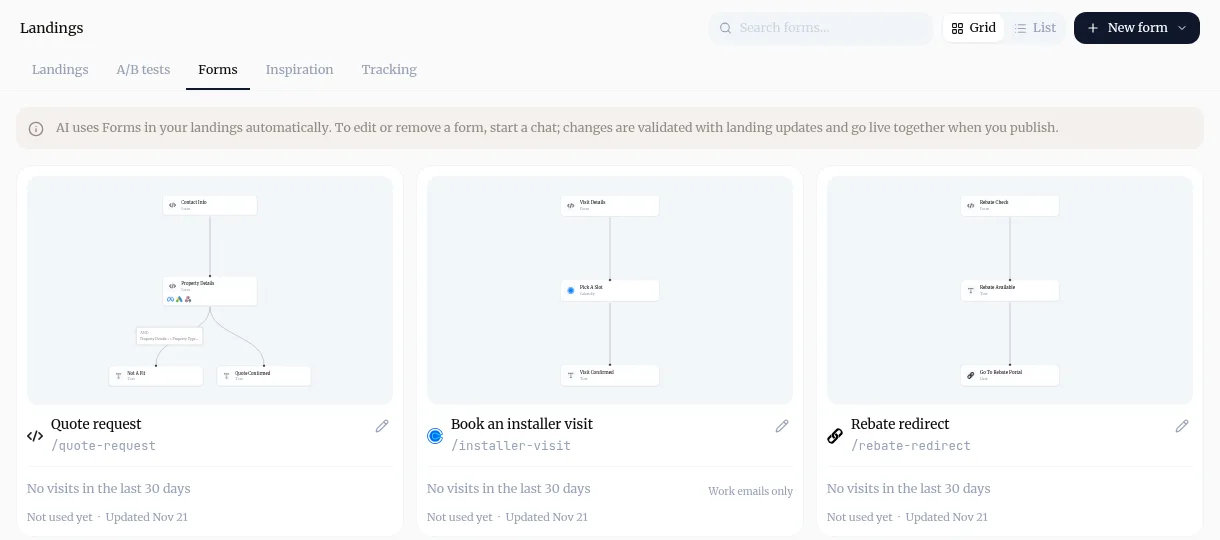
-
Open the Submissions tab and find your test. If it is not there yet, refresh after a moment.
-
Read the status on its row:
| Status | What it means |
|---|---|
| Sent to HubSpot, Pipedrive, Google Sheets… | The destination confirmed it received the lead |
| Sending… | Baker is still sending it. This usually takes a few seconds |
| Sent, not confirmed | It was accepted, but the destination didn’t say which record it created |
| Couldn’t send | A destination turned it down. The answers are saved in Baker |
| Only counted as a conversion | The Form told your ad platforms, but has no CRM, sheet or email |
| Not sent anywhere | The Form isn’t connected to a CRM or email |
| Left before the end | The visitor stopped before finishing, so nothing was sent |
- Open the row. Where it went lists each destination and its answer, and the record id the CRM gave back when it gave one.
Check the lead in your CRM
Open the contact in your CRM, sheet or inbox and check the fields, including campaign tracking if the Form sends it. Or ask Baker in a chat, for example: “Did test+nov21@example.com reach Pipedrive, with its UTM values?” Baker looks the lead up in HubSpot, Pipedrive or ActiveCampaign and tells you what it found.
When an email is already in HubSpot or GoHighLevel, the existing contact is updated instead of a new one being created. Pipedrive gets a new person every time.
Test a lead ad’s leads
Leads from Meta, LinkedIn and Google Ads lead forms reach your CRM through Baker too. To test them, publish first, then send a test lead with the platform’s own tool, such as Meta’s Lead Ads Testing tool or a LinkedIn test lead. Baker checks every few minutes and delivers it. A LinkedIn test lead arrives marked as a test and is not counted in the lead form’s numbers. A lead from Meta’s Lead Ads Testing tool is delivered and counted like a real lead, so use an address you’ll recognise.
Try asking Baker
I just sent a test lead with test+nov21@example.com from my pricing page. Did it reach HubSpot with its UTM values?
Troubleshooting
- If you see "The submission says Couldn't send."
- One destination turned the lead down. Open the row and read Where it went to see which one and why, then ask Baker to fix the Form. The answers are saved in Baker.
- If you see "The submission says Sent, not confirmed."
- The destination accepted the lead but didn't say which record it created. Check the lead is in that tool.
- If you see "The submission says Only counted as a conversion or Not sent anywhere."
- The Form tells your ad platforms about the conversion but has no CRM, sheet or email. Ask Baker to add one and publish.
- If you see "The submission says Left before the end."
- The Form was not finished, so nothing was sent. Go through every step to the end.
- If you see "No submission appears at all."
- Make sure you used the published page, not the chat preview or a shared review link, which never send leads. Then refresh Submissions.
- If you see "The lead is not a new contact in HubSpot or GoHighLevel."
- That email was already there, so the existing contact was updated. Use a new address for each test.
Questions
Does a test lead count in my numbers?
Yes, for a website Form. Baker has no separate test mode for Forms on your pages, so the test is a real submission. Use an address you can recognise.
How do I test a Meta or LinkedIn lead ad?
Use the platform's own testing tool. A LinkedIn test lead is delivered within a few minutes, marked as a test, and not counted. A lead from Meta's Lead Ads Testing tool is delivered and counted like a real lead, so use an address you'll recognise.
Who can see what the test lead typed?
Everyone with access sees where a lead went. What the visitor typed is kept encrypted, and only someone who manages the company can open it with Show what they sent.
Next steps
- Add a form that sends leads to your CRM Create a Form with Baker, choose where its leads go, from HubSpot to a Google Sheet or your inbox, and put it live on your landing pages.
- Find out why a change isn't live The six reasons a change you made with Baker is not on your site or ad account yet, and what to do about each.
- Connect HubSpot to Baker Install Baker in your HubSpot account, send your Forms' leads to HubSpot, and disconnect or uninstall it, with what happens to your data.
Was this helpful?
Thanks. We read every answer.