Add a form that sends leads to your CRM
- Updated
- 4 min read
- Every plan
- Who can do this: admins and members
 Open in ChatGPT
 Open in Claude
In short
Open Landings → Forms and press New form, or ask Baker in any chat. Choose Custom form, or start from HubSpot, Pipedrive, GoHighLevel, Calendly or SavvyCal. Tell Baker what to ask and where leads should go: your CRM, a Google Sheet, an email, Zapier or a webhook. Check it in the preview, then press Publish. One Form can sit on many landing pages.
By the end, you will have a Form that captures leads and sends each one where you need it.
Before you start
- An admin or member role in Baker. Viewers can see Forms but not change them.
- The account the leads go to, connected in Brain → Integrations, if it is a CRM, a calendar or Google Sheets.
What is a Form?
A Form is the lead capture on your landing pages: the questions a visitor answers, the steps they go through, and what happens when they finish. Baker builds Forms with fixed rules, not guesses, because a Form handles real people’s details and tells your ad platforms what converted. You build a Form once and use it on as many landing pages as you like.
Where are my Forms?
Open Landings and choose the Forms tab. Each card shows a Form’s steps, its address, how many visits it had in the last 30 days and which landings use it.
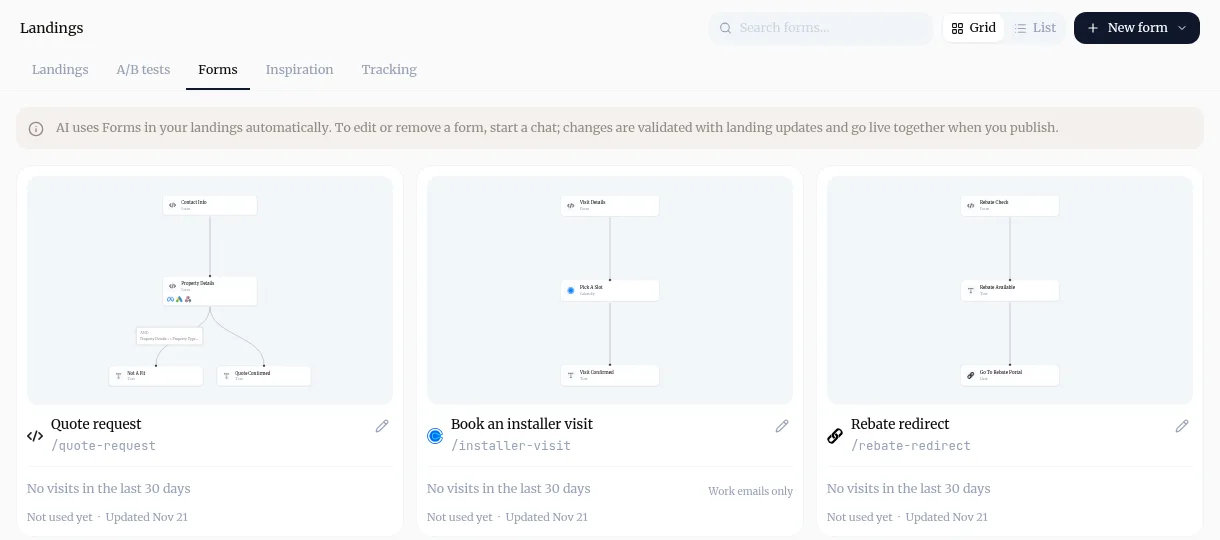
Create a Form
-
In Landings → Forms, press New form.
-
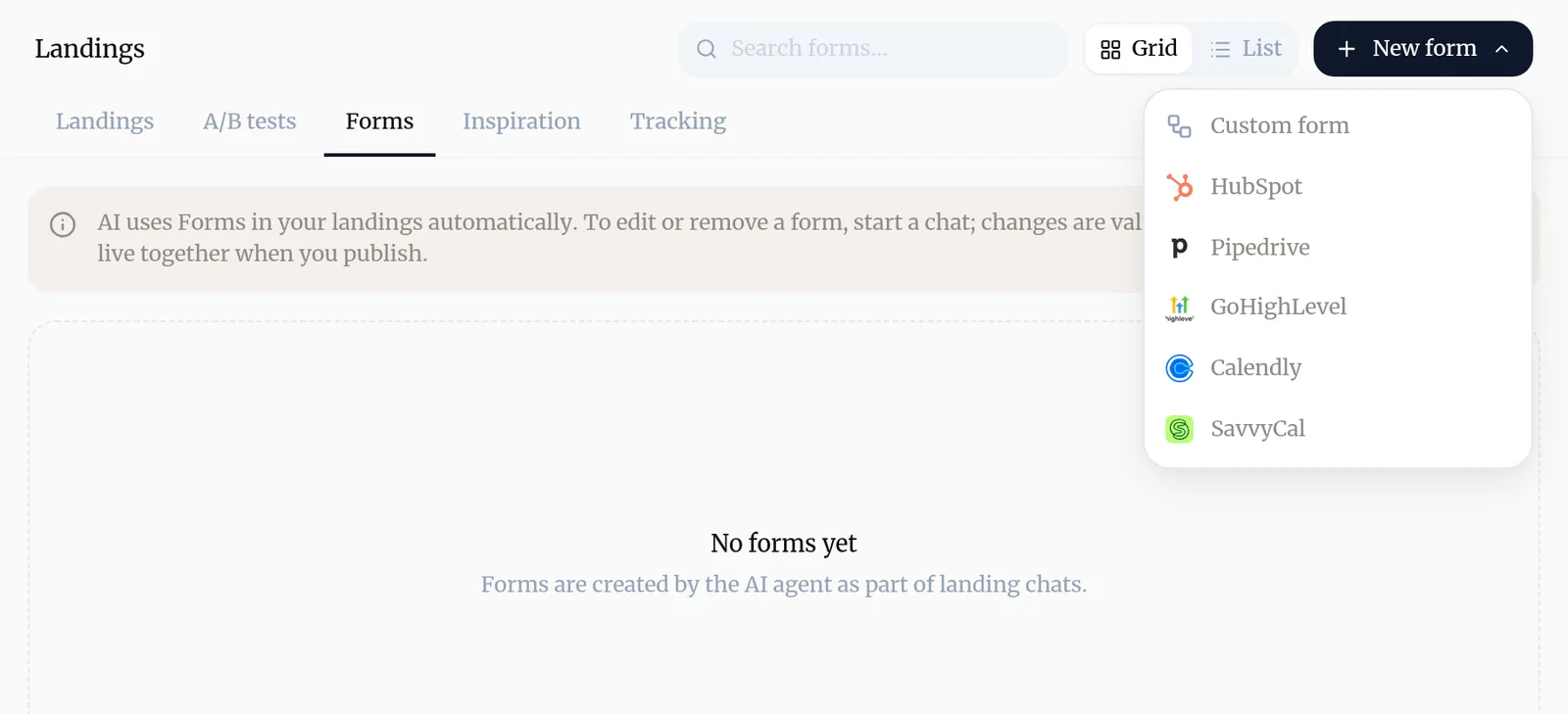
Choose where to start:
- Custom form for your own questions.
- HubSpot or GoHighLevel to use a form you already built there.
- Pipedrive for a form whose leads go to Pipedrive.
- Calendly or SavvyCal for a Form where people book a meeting.
-
A chat opens. Tell Baker what the Form should ask, which steps it needs and where each lead should go. For example: “ask for company size first, and only send companies over 50 people to HubSpot”.
-
If a destination needs an account, Baker shows a card in the chat to connect it. If it needs a key, a password or a Zapier address, Baker asks for it in a secure box, never in the chat.
-
Check the Form in the preview. When you submit it there, Baker shows what each destination would receive, and sends nothing.
-
Ask Baker to put the Form on the landing page you want, then press Publish.
You can also skip the menu and ask in any chat: “Add a contact form to my pricing landing that sends leads to Pipedrive.”
Where can a Form send its leads?
| Destination | What happens to each lead |
|---|---|
| HubSpot | Submitted to the HubSpot form you choose |
| Pipedrive | A person, an organization and a lead in your Leads Inbox |
| GoHighLevel | A contact, and a business and opportunity when you ask for them |
| ActiveCampaign | A contact with your tags, lists and automations |
| Google Sheets | A new row in the sheet you choose |
| An email to your team, or a reply to the person who filled it in | |
| Zapier and webhooks | Sent to your Zap or to any web address |
A Form can also tell Meta, Google Ads, Google Analytics, LinkedIn, TikTok, Pinterest and other platforms that someone converted, so they optimise your ads. Baker also records which of the Form’s endings counts as a conversion in your reports.
Check what a Form does
-
In Landings → Forms, open a Form.
-
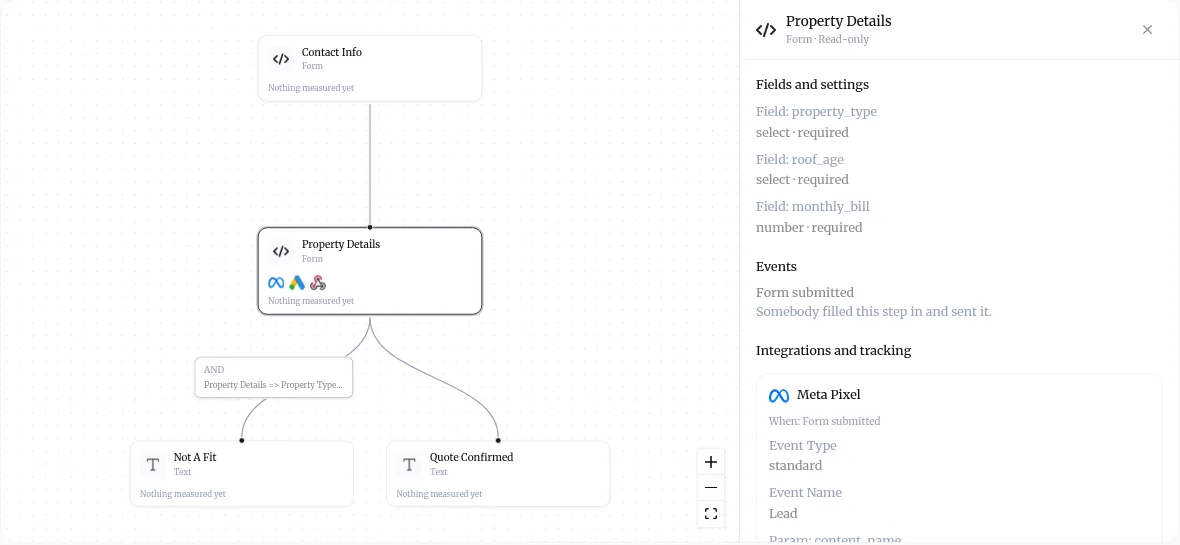
On Overview, select a step. The panel shows its fields and, under Integrations and tracking, every place it sends to and when.
-
Open Submissions to see each lead and where it went.
The panel is read-only. To change anything, press Chat to edit.
Change or remove a Form
Press Chat to edit on the Form, or open its card’s pencil, and tell Baker what to change. Changes are checked with your landing updates and go live together when you publish.
Next step
Once the Form is live, send a test lead to prove every destination receives it.
Try asking Baker
Create a quote request Form that asks for name, email, phone and monthly energy bill, sends every lead to HubSpot and emails sales@example.com.
What happens when you publish
The Form goes live on the landing pages that use it, and from then on every submission is sent to its destinations and counted in Baker.
Troubleshooting
- If you see "Baker asks you to connect an account in the chat."
- The destination you asked for is not connected yet. Press the button on the card in the chat, or connect it in Brain → Integrations, and Baker carries on.
- If you see "Baker asks for a key, password or Zapier address."
- Type it in the secure box Baker shows in the dashboard, never in a chat message. Baker keeps it encrypted.
- If you see "Your Form does not appear on a landing page."
- A Form shows on a landing only once the landing uses it and you publish. Ask Baker to add the Form to the landing, then publish.
Questions
Can I edit a Form directly on the Forms page?
No. To change or remove a Form, press Chat to edit on the Form, or ask Baker in a chat. Changes go live with your landing updates when you publish.
Can one Form be used on several landing pages?
Yes. Build the Form once, with its destinations and conversion, and Baker reuses it on every landing you ask for.
Can a Form send to two places at once?
Yes. A Form can send each lead to your CRM, a sheet and an email together, and tell your ad platforms someone converted.
Do test submissions in the preview reach my CRM?
No. The preview shows what each destination would receive and sends nothing. Leads start going out once you publish.
Next steps
- Send a test lead and check it arrived Prove a Form works end to end, from your live landing page to your CRM, sheet or inbox, and read what Baker says about each submission.
- Create a landing page Brief Baker on a landing page for your ads, review it in the preview, and publish it to your site.
- Publish your changes What Publish sends live, in what order, how to check it worked, and how to discard a chat's changes instead.
Was this helpful?
Thanks. We read every answer.