Create a landing page
- Updated
- 3 min read
- Every plan
- Who can do this: admins and members
 Open in ChatGPT
 Open in Claude
In short
Press New landing on the Landings page, or ask in any chat, and tell Baker the offer, who the page is for and which ads send people to it. Baker plans the page, builds it with its form and tracking, and shows it in the chat's preview. Ask for changes until you like it, then press Publish: the page goes live at its own address on your site.
By the end, you have a landing page live on your site, ready for your ads.
Before you start
- Your brand in Brain → Brand, so the page looks and sounds like you.
- The ad or campaign the page is for. Baker builds the page to continue that ad's promise.
You don’t build a landing page in Baker: you brief one. Baker plans it like a conversion specialist, writes it, builds it with its form and tracking, and shows it to you before anything is public.
How do I start?
- Open Landings in the sidebar.
- Press New landing. A new chat opens.
- Write your brief and send it.
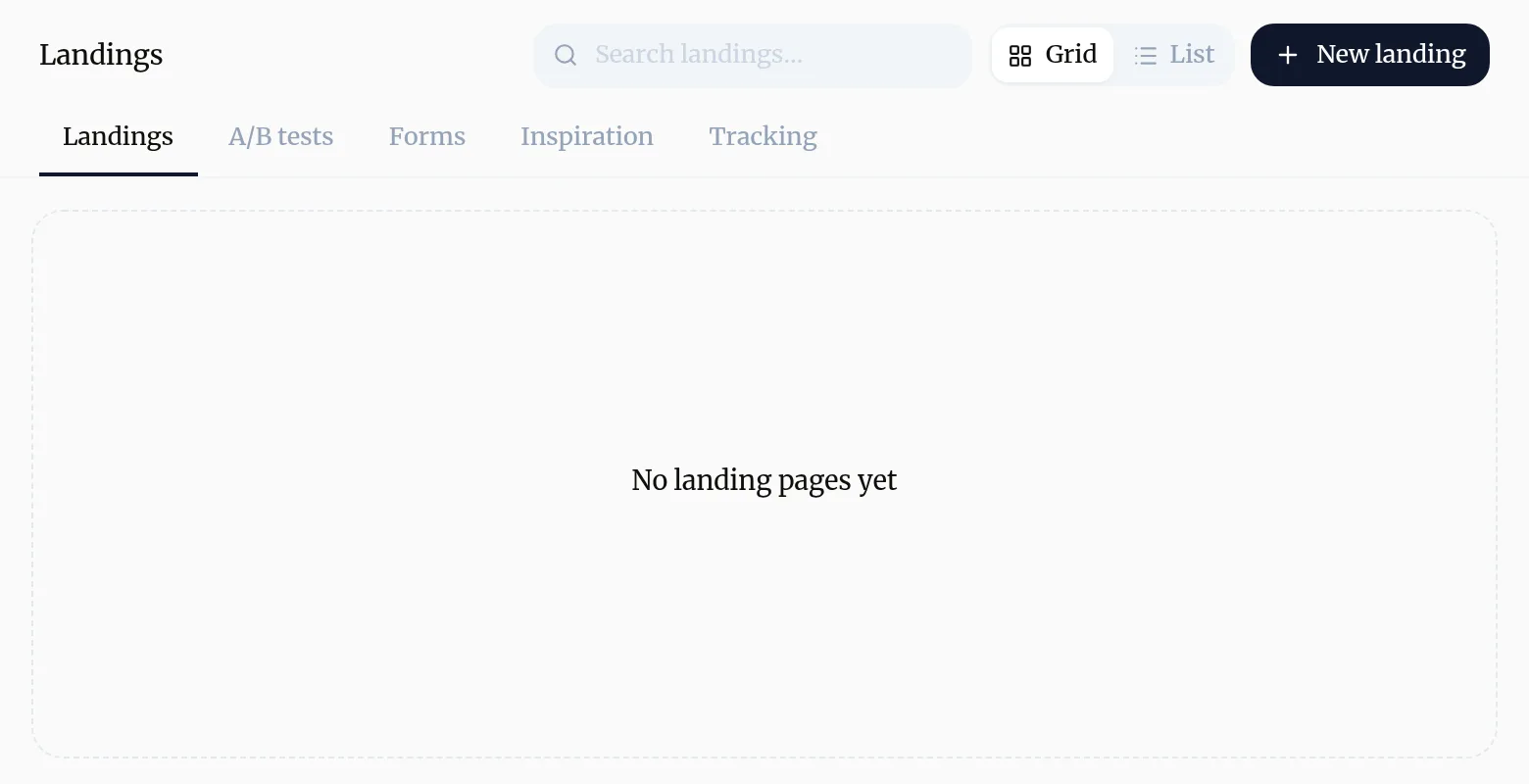
You can also ask for a page in any chat, from Home.
What should the brief say?
The page only converts if it continues the ad that sent the visitor. Tell Baker:
- The offer: what the visitor gets and what it costs them.
- Who it is for, and how much they already know about you.
- Where the traffic comes from: the platform and, ideally, the ad itself (attach it or type @ to point at it).
- What you need from the visitor: the form fields, a booking, a call.
- Where the leads go: your CRM, a sheet or an email.
Baker fills the gaps from Brain (your company, brand and knowledge) and asks you when something only you can decide is missing. If the offer itself looks weak, it tells you rather than dressing it up.
How do I review it?
When Baker finishes, the page is listed on the right of the chat. Open it to see the page in the preview and click through it like a visitor. Then say what to change, in plain words: “shorter headline”, “move the testimonials above the form”, “use the photo of the team”. Each change updates the same preview.
To get a client’s opinion before you publish, send them a review link. See Share unpublished work for review.
How do I make it live?
Press Publish at the top right of the chat. Within a few minutes the page is live at its own address, with its form and your tracking tags, and it appears in Landings. See Publish your changes.
Where do I find it afterwards?
In Landings, as a card in the grid or a row in the list. Open a page to see its visitors, where they came from and the forms on it. From there:
- The view button opens the live page. If you have several domains, choose which one.
- Chat to edit opens a chat to change it. The change waits for Publish like any other.
To put your pages on your own address, such as offers.yourcompany.com, see Put your pages on your own domain.
Try asking Baker
Create a landing page for our free home energy survey, for homeowners who click our Meta ads about cutting their bill. Ask only for name, phone and postcode, and send the leads to our CRM.
What happens when you publish
The page goes live at its own address on your site within a few minutes, with its form and your tracking tags, and appears in Landings.
Troubleshooting
- If you see "The preview shows "Preview building…"."
- Baker is still putting the page together. It appears in a moment.
- If you see "The page is not on Landings after you built it."
- Landings shows published pages. Publish the chat, then the page appears.
- If you see "You want to check the form really delivers leads."
- Send a test lead once the page is live. See the article Send a test lead.
Questions
Will Google list my landing page?
Not by default. Landings are built for ad traffic, so they are hidden from search engines; ads and link previews still work. An admin or member can change this in Settings → Landings → Search engines.
Where does the page live?
At its own path on your company's site, on Baker's address or on your own domain. See Put your pages on your own domain.
Can I change a page after it is live?
Yes. Open it from Landings and press Chat to edit. The change waits in that chat until you publish it again.
Can I use the same form on several pages?
Yes. A Form is built once and can be placed on many pages. Changing it updates every page that uses it when you publish.
Next steps
- Add a form that sends leads to your CRM Create a Form with Baker, choose where its leads go, from HubSpot to a Google Sheet or your inbox, and put it live on your landing pages.
- Put your pages on your own domain Serve your landing pages from an address like offers.yourcompany.com by adding one CNAME record at your domain provider.
- Run an A/B test on a landing page Test a new version of a page against the original, read the verdict, and end the test with what you learned.
Was this helpful?
Thanks. We read every answer.