Work through Tasks, the to-dos Baker leaves you
- Updated
- 2 min read
- Every plan
- Who can do this: admins and members
 Open in ChatGPT
 Open in Claude
In short
Tasks is your company's to-do list. Baker adds to it whenever an audit, a plan or a chat turns up work for later, and you can add your own. Each task has a priority, tags, an owner and the tasks it waits on. Open one and press Solve with AI to have Baker do it in a chat, or Mark complete once it's done.
By the end, you'll know how to read your task list, hand a task to Baker and close it.
Before you start
- You need to be an admin or a member of the company to add or change tasks.
Every audit, strategy or plan ends with work to do. Tasks keeps that work in one list instead of leaving it buried in a chat, so anyone can open it and answer “what should we do now?”.
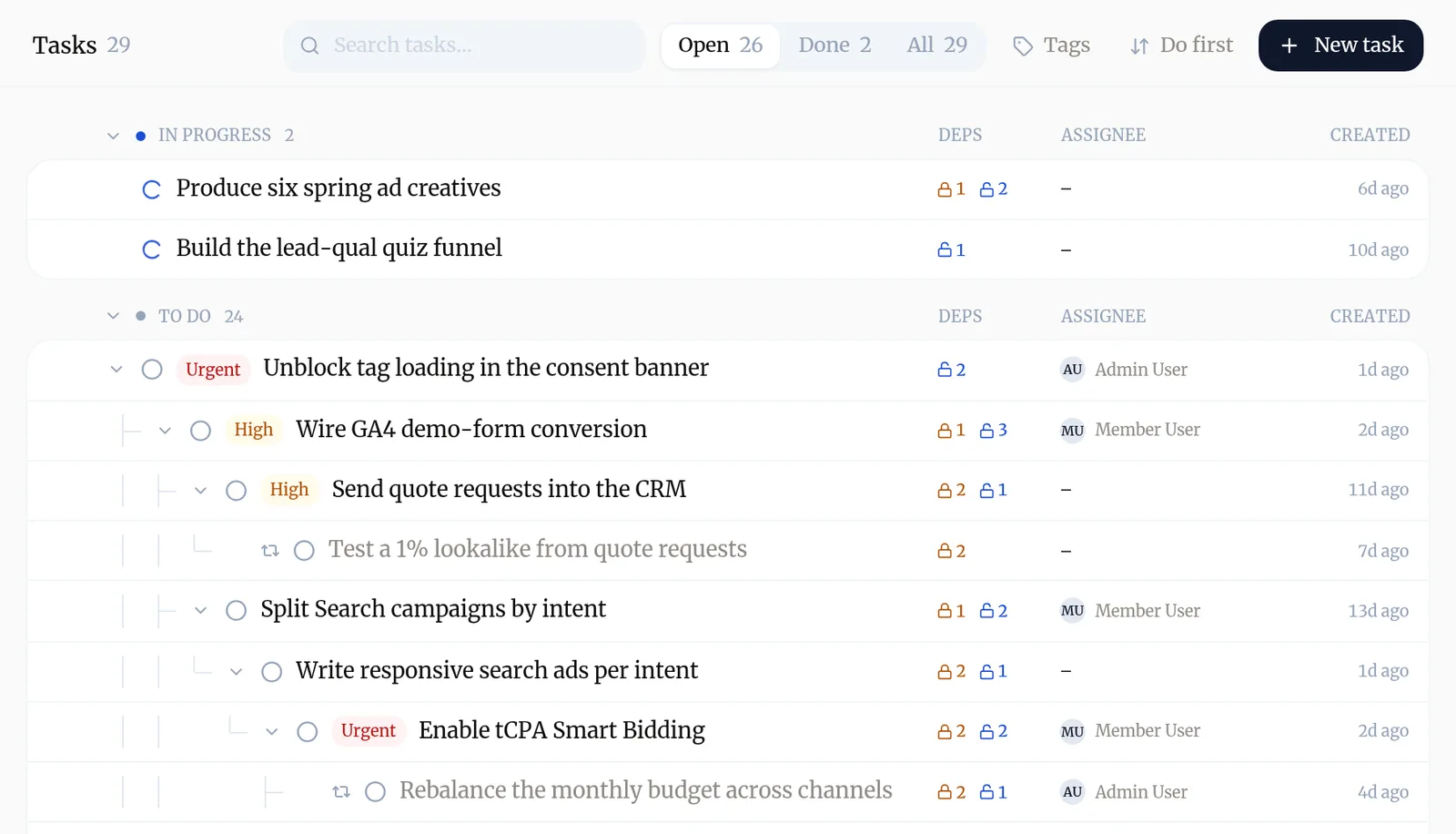
How do I read the list?
- Tasks are grouped by In progress and To do. Use Open, Done and All at the top to switch.
- A task indented under another is blocked by it: it waits until that one is done.
- Do first sorts the list so the most urgent, most valuable unblocked work comes first. You can also sort by Recently updated or Name (A–Z).
- Tags filters the list, for example to show only Google Ads or Tracking tasks.
How do I add a task?
- Go to Tasks and press New task.
- Type the Task name and, if useful, a description.
- Press Create task.
You can also just tell Baker in a chat: “add a task to refresh the spring creatives before March”.
What’s inside a task?
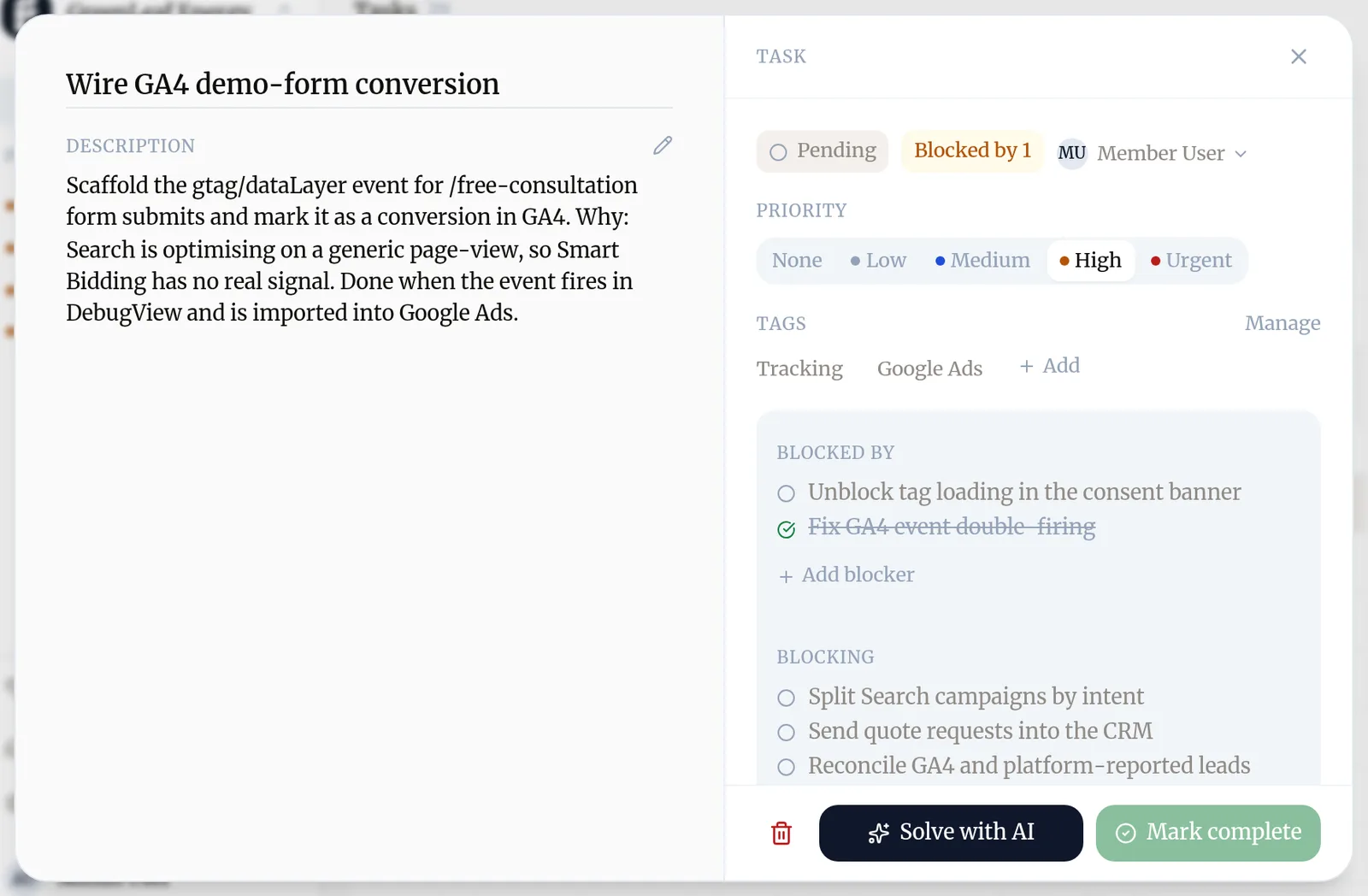
Open a task to see and change:
- Priority: None, Low, Medium, High or Urgent.
- Tags, to group it with related work. Manage edits the tag list.
- The assignee, the person responsible for it.
- Blocked by and Blocking: the tasks it waits on and the tasks waiting on it. Add blocker links another task.
How do I get a task done?
- Have Baker do it: press Solve with AI. Baker opens a chat with the task attached and starts on it. Review what it prepares and press Publish.
- Do it yourself: when it’s done, press Mark complete and add a short Completion note saying what was done.
- Drop it: press the bin icon to discard a task nobody needs any more.
Try asking Baker
Look at our open tasks and tell me which three to do first this week, and why.
What happens when you publish
Tasks Baker creates or changes during a chat are added to the list when you publish that chat. If you discard the chat, they are dropped.
Troubleshooting
- If you see "Mark complete is greyed out."
- The task is blocked by another one that is still open. Finish or remove the blocker first; you'll see it under Blocked by.
- If you see "Baker said it created tasks but they aren't in the list."
- They are added when the chat is published. Open the chat and press Publish.
- If you see "A task has been In progress for a long time."
- Open the chat working on it. If that chat was discarded, the task goes back to To do on its own.
Questions
What is the difference between a task and a routine?
A task is a single piece of work done once. Work that repeats or waits for something to happen, like "every Monday" or "when a lead comes in", is a routine.
Why does Baker mark a task In progress?
When Baker starts work on a task in a chat, it claims it, so no other chat or teammate does the same work twice. Publishing the chat settles it; discarding the chat releases it.
What is the completion note for?
It records what was done, with links and decisions, so your team and Baker can see it later. It becomes part of the record of what you actually did.
Next steps
- Set up a routine so Baker works on its own Have Baker do a job on a schedule or when something happens, review what each run prepared, and post results to Slack.
- Have your first chat with Baker What to ask Baker, what it does while it works, how to review what it prepared and how to publish it or throw it away.
- Find the work a chat made Where a chat's pages, creatives, reports and tasks show up in Baker, before and after you publish.
Was this helpful?
Thanks. We read every answer.