Have your first chat with Baker
- Updated
- 4 min read
- Every plan
- Who can do this: admins and members
 Open in ChatGPT
 Open in Claude
In short
Type what you need in the box on Home, the way you would brief a colleague, and send it. Baker works on it and lists every change it prepares in the panel beside the chat, where you can review and preview each one. Nothing reaches your site, your ads or any other platform until someone on your team presses Publish.
By the end, you have sent your first request, reviewed what Baker prepared and know how to publish it or discard it.
Before you start
- A Baker login as an admin or a member. Viewers can read chats but cannot start one.
- Connect your ad and analytics accounts first if you can, so Baker works from your real numbers.
A chat is how you ask Baker for anything: a landing page, a batch of ads, a change to a campaign, a report. You describe the job, Baker does it, and you decide what goes live.
Where do I start a chat?
- Open Home.
- Type your request in the box that reads Create something, @mention assets.
- Press Enter, or the arrow button, to send it.
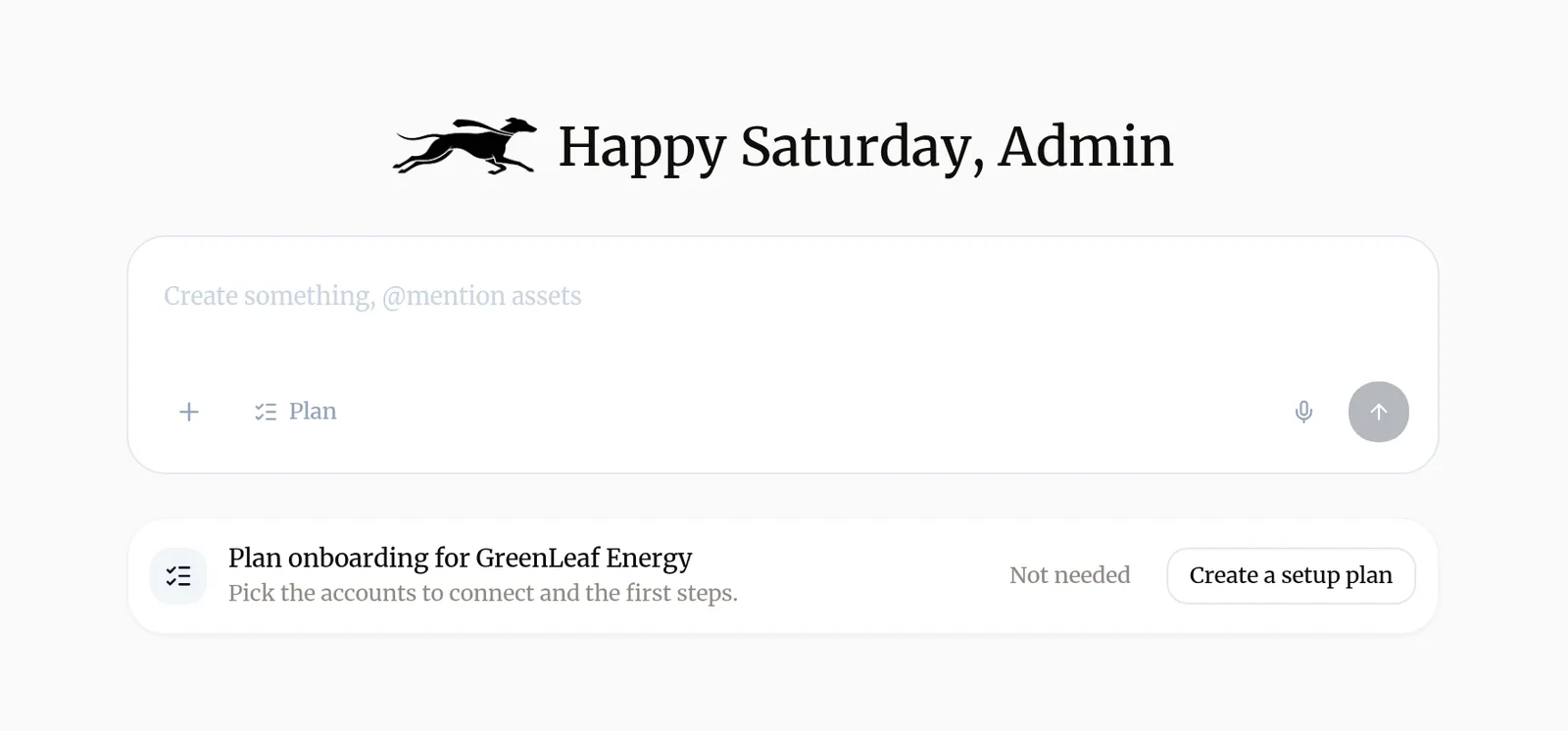
You can also start a chat from Chats in the sidebar with New, or from the New landing, New creative and New report buttons on those pages.
In the message box you can:
- Type @ to point Baker at something you already have, such as an image, a page or a creative.
- Press + to attach files, like a brief, a price list or a photo.
- Turn on Plan so Baker proposes a plan and waits for your approval before it starts.
- Press the microphone to say your request instead of typing it.
What should I ask for?
Brief Baker as you would brief a good colleague: what you want, who it is for, and anything it must respect. A clear goal beats a long list of instructions. Some requests to start with:
- “Build a landing page for our free consultation, for people who search for it on Google. Ask only for name and phone.”
- “Make four static ads for the spring offer in square and story sizes, using our product photos.”
- “Look at our Meta campaigns from the last 30 days and tell me where we are wasting money. Prepare the changes, but don’t publish anything.”
- “Pause the ad sets with a cost per lead above 40 euros and move their budget to the best one.”
- “Set up an A/B test on the pricing page: a version that leads with the price.”
- “Every Monday, send me a summary of last week’s leads by campaign.”
What does Baker do while it works?
Baker tells you in a sentence what it is about to do, then works. Short notes appear while it works, and when it finishes it writes a summary that says what it prepared and what waits for you. If it needs a decision only you can make, it stops and asks, often with a few options to pick from.
Where do I review what Baker prepared?
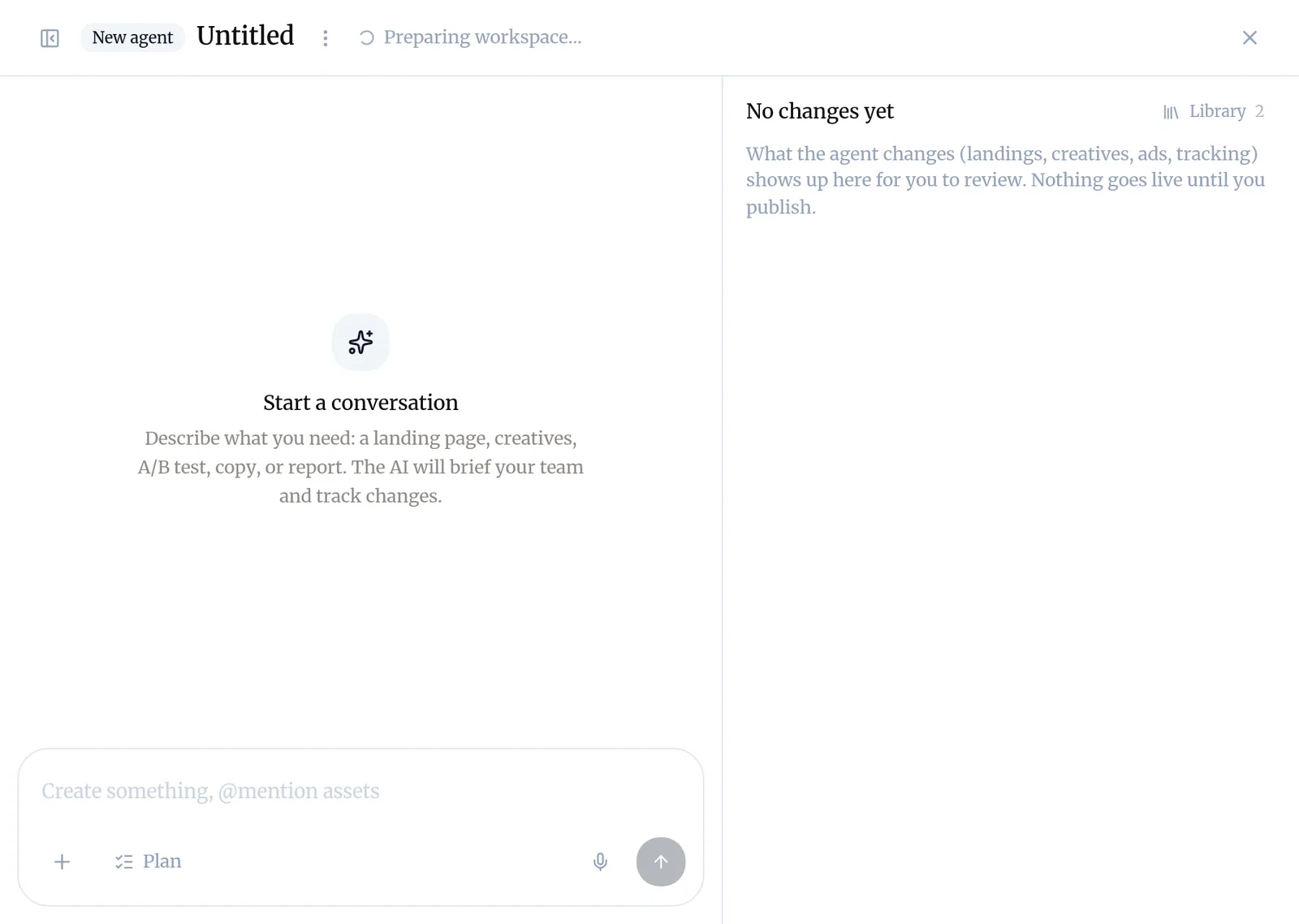
Every change Baker prepares appears in the panel on the right of the chat, under a heading such as 1 change waiting to publish. Open a change to see it: a page shows a live preview you can click through, and an ad change shows the ad and its settings before and after.
Not happy with something? Say so in the chat (“make the headline shorter”, “use the blue version”) and Baker updates the change. You can also remove one change from the list without throwing away the rest.
How do I make it live?
Press Publish at the top right of the chat. The button counts what it will send, for example Publish 3 changes. Read Publish your changes before your first one: it explains what goes out, in what order, and how to check it worked.
What if I don’t want any of it?
Open the menu (⋮) beside the chat’s name and choose Discard. Baker reverts every change the chat prepared and moves the chat to your discarded chats. Nothing of it reaches your site or your accounts.
Try asking Baker
Build a landing page for our spring offer, for people who click our Meta ads. Keep the form short: name, email and phone. Show me the page before anything goes live.
What happens when you publish
Everything the chat prepared goes out together: pages go live on your site, and ad and platform changes are sent once the pages are live. The chat then closes, and you can keep working in it if you need more.
Troubleshooting
- If you see "You see "Preparing workspace…" next to the chat's name."
- Baker is getting the chat ready. Leave it open; the message goes away once it is ready.
- If you see "There is no Publish button at the top right of the chat."
- It appears once Baker has prepared something to publish. Viewers never see it; ask an admin or a member of your team to publish.
- If you see "Baker stopped and asked you a question."
- Answer it in the chat, or pick one of the options it offers. Baker carries on as soon as you reply.
Questions
Can Baker change my live site or my ads while we chat?
No. Everything a chat prepares waits in that chat until someone presses Publish. Until then you can review it, ask for changes or discard it.
Do I have to write in English?
No. Write in your own language and Baker answers in it. The buttons in Baker are in English.
What if I want to see the plan before Baker starts?
Turn on Plan in the message box before you send. Baker proposes a plan first and waits for you to approve it.
Can I work on several things at once?
Yes. Start a new chat for each job. Each chat keeps its own changes and is published on its own.
Next steps
- Find the work a chat made Where a chat's pages, creatives, reports and tasks show up in Baker, before and after you publish.
- Publish your changes What Publish sends live, in what order, how to check it worked, and how to discard a chat's changes instead.
- Understand credits and get more when you run low What credits are, what uses them, where to see your balance, what happens when they run out and how to buy extra credits.
Was this helpful?
Thanks. We read every answer.