Add a client company to your organization
- Updated
- 3 min read
- Every plan
- Who can do this: admins
 Open in ChatGPT
 Open in Claude
In short
Each client you run in Baker is a company inside your organization, with its own website, ad accounts and Knowledge. An admin adds one from the company list with New company. Each company after the first adds $100 a month (€100 in Europe), and Baker shows the charge before you create it. Then create its setup plan and send a setup link to connect its accounts.
By the end, your new client will have its own company in Baker and a setup link on its way to whoever holds its accounts.
Before you start
- Only admins can add a company. Anyone else who presses New company is told to ask an admin of the organization.
- Have the client's name and, ideally, its website.
- Know who holds the client's ad accounts, analytics and CRM. They'll connect them from the setup link.
Think of your organization as a holding company and each client as one of its businesses: you pay once at the top, and each client has its own chats, Brain, landing pages, forms, reports and connected accounts.
1. Create the company
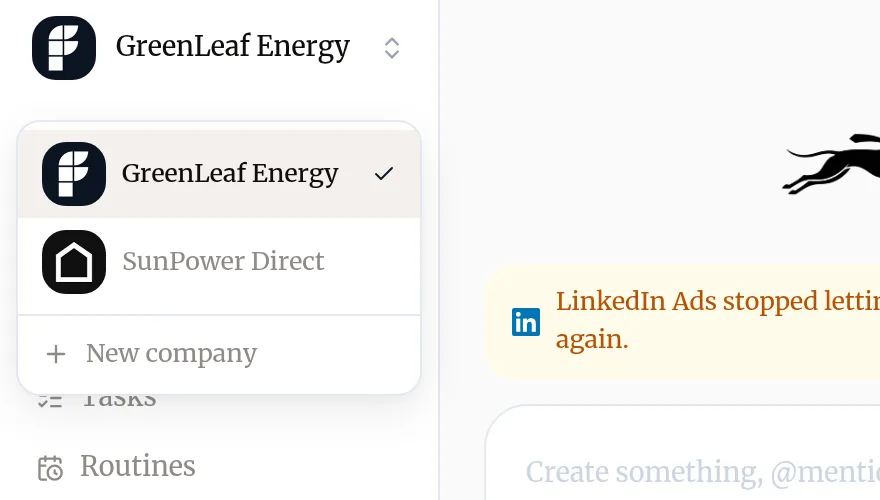
- Open the company list at the top left, where your current company’s name is.
- Press New company.
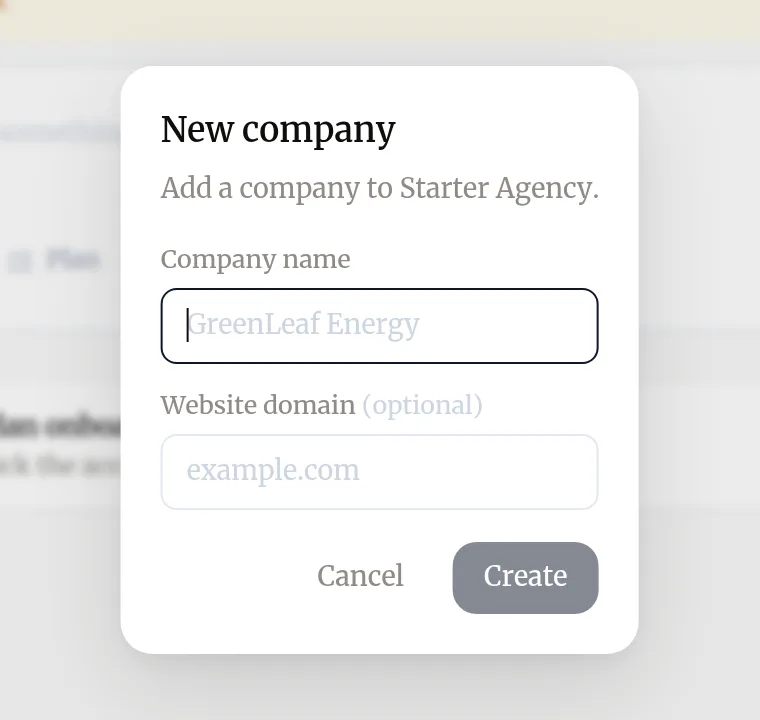
- Type the Company name and, if you have it, the Website domain.
- Read the line about the cost, if there is one. It says what the company adds to your plan and from when.
- Press Create. Baker opens the new company.
2. Plan its setup
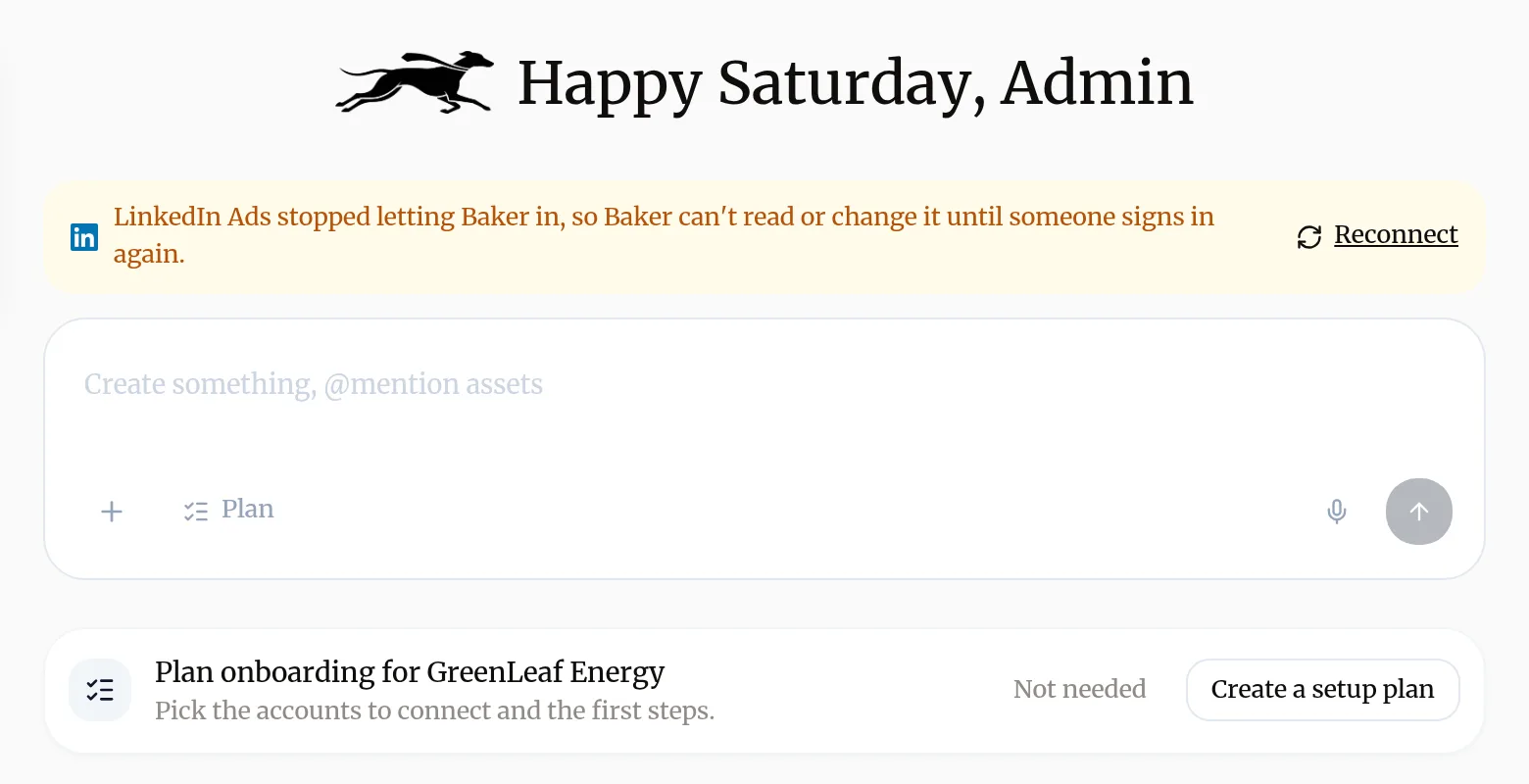
On the new company’s Home, the card Plan onboarding for your client lets you decide what to set up.
- Press Create a setup plan.
- Pick the accounts to connect and the first steps.
If the company needs no setup, press Not needed.
3. Send a setup link to connect its accounts
Your client, or a colleague of theirs, connects the accounts from a setup link. They don’t need a Baker login.
- On the company’s Home, press Share setup link to copy the link for everything on its plan. To send only some items, go to Settings → Setup Links and press Generate link.
- Send the link to your client. Each platform has its own card, which they can forward to whoever holds that account.
- Watch the setup checklist on Home: steps tick off on their own as accounts are connected.
How the link looks to your client: Connect accounts with a setup link.
4. Give people access
Invite your client’s people as Viewers of their company, and your own collaborators as Members of the clients they work on. See Invite your team.
5. Teach Baker about the client
Before the first real piece of work, fill in the client’s Company profile and Brand. See Teach Baker your business.
What happens when you publish
Creating a company and sending a setup link change nothing on the client's accounts. Baker only changes them when someone publishes work in that company.
Troubleshooting
- If you see "New company doesn't open the form."
- You aren't an admin of the organization. Ask an admin to add the company, or write to support@withbaker.com.
- If you see "The setup link has stopped working."
- A setup link works for 30 days. Send a new one from Share setup link on the company's Home, or from Settings → Setup Links.
- If you see "Your client's colleague can't connect an account on the setup link."
- They need enough access on that platform. Send the card for that platform to the person who holds the account. See setup link.
Questions
How much does a new company cost?
Your plan includes one company. Each company after the first adds $100 a month, or €100 in Europe. It's added from your next invoice. On a yearly plan, the dialog shows the yearly amount, added from your next renewal.
Do all my clients share credits?
Yes. Every company in your organization draws on the same plan's credits.
Can a client see the other clients?
No. Invite a client's people as viewers of their own company, and they see only that company.
Can my team members work on some clients only?
Yes. Invite them as members and choose the company. See roles and invites.
Next steps
- Ask someone else to connect an account with a setup link Send a client or colleague a setup link so they can connect the accounts they hold, with no Baker login, and give your agency partner access.
- Invite your team and choose what each person can do The three roles in Baker, how to invite someone, give a client view-only access to one company, and let colleagues join on their own.
- Manage your plan, invoices and payment method How Baker's plans work, what each extra company costs, paying in euros or dollars, and where to change plan, card and billing details.
Was this helpful?
Thanks. We read every answer.