Invite your team and choose what each person can do
- Updated
- 3 min read
- Every plan
- Who can do this: admins
 Open in ChatGPT
 Open in Claude
In short
Baker has three roles. Admins manage the whole organization, its people and its settings. Members do the work: they chat with Baker, review and publish. Viewers can only read one company. An admin invites people in Settings → Members by typing their email and choosing a role and, for members and viewers, which company they can open.
By the end, you'll have invited someone with the right role and the right companies.
Before you start
- Only admins can invite people, change roles and remove members.
- Have the email address the person will sign in with. The invitation only works for that address.
What can each role do?
| Role | What they can do | Which companies |
|---|---|---|
| Admin | Everything: chat, review and publish, invite and manage people, add companies and change settings. | Always all companies. |
| Member | Chat with Baker, create and edit work, review and publish, and change most company settings. Can’t invite or manage people, add companies or change organization settings. | All companies, or the ones you choose. |
| Viewer | Read only. Can’t create or change anything. | One company. |
How do I invite someone?
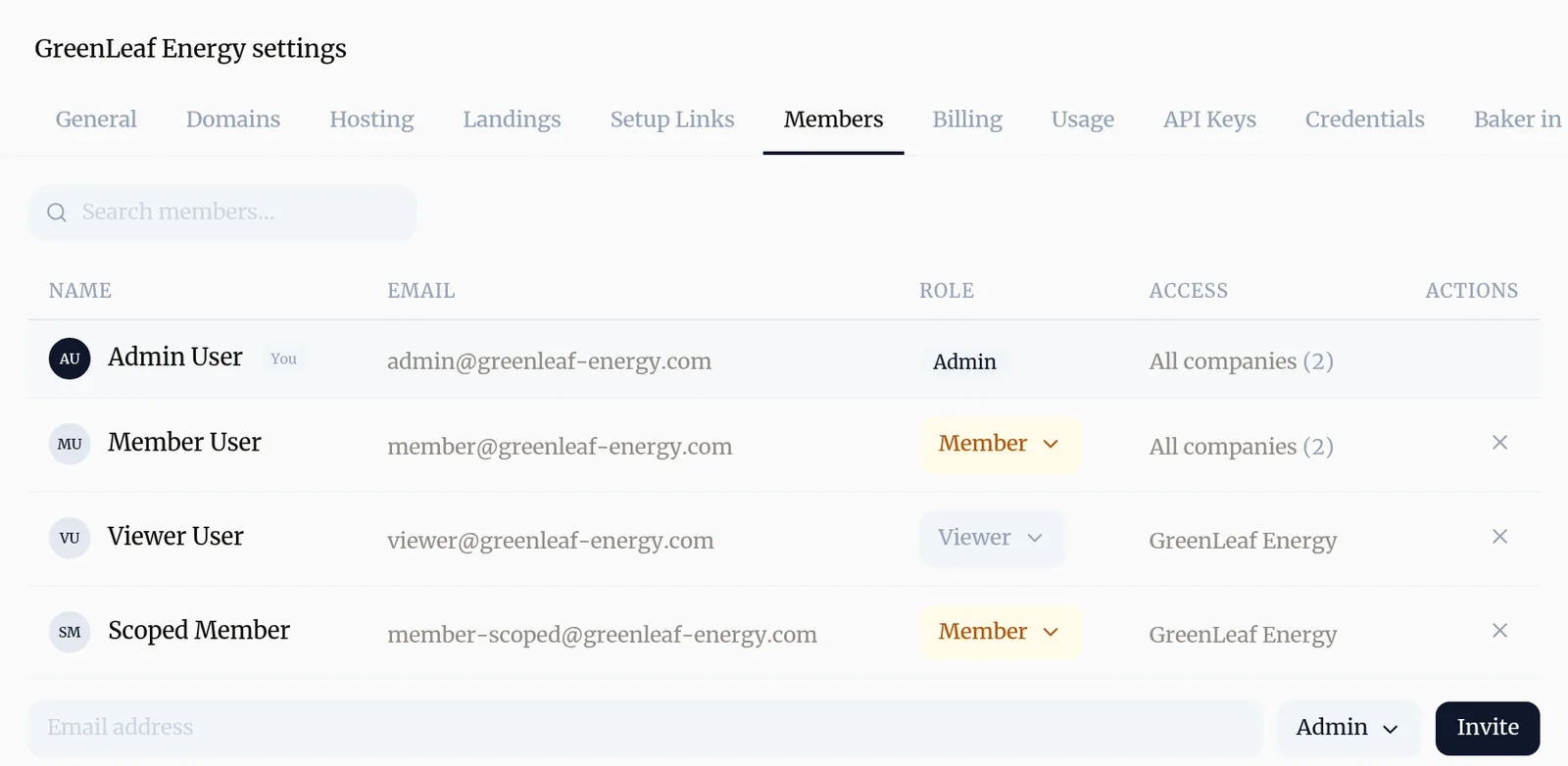
- Go to Settings → Members.
- In the row under the list, type their Email address.
- Choose the role: Admin, Member or Viewer.
- For a member, choose All companies or one company. For a viewer, choose their company.
- Press Invite. You’ll see “Invitation sent to” their address.
They get an email. When they sign in with that address, Baker asks them to join your organization.
How do I change a role or remove someone?
In Settings → Members, press a person’s role to pick another, or press the × at the end of their row to remove them. For someone invited to one company, remove them and invite them again with the new role. Pending invitations are listed under Pending Invites, where you can cancel them.
Can colleagues join without an invitation?
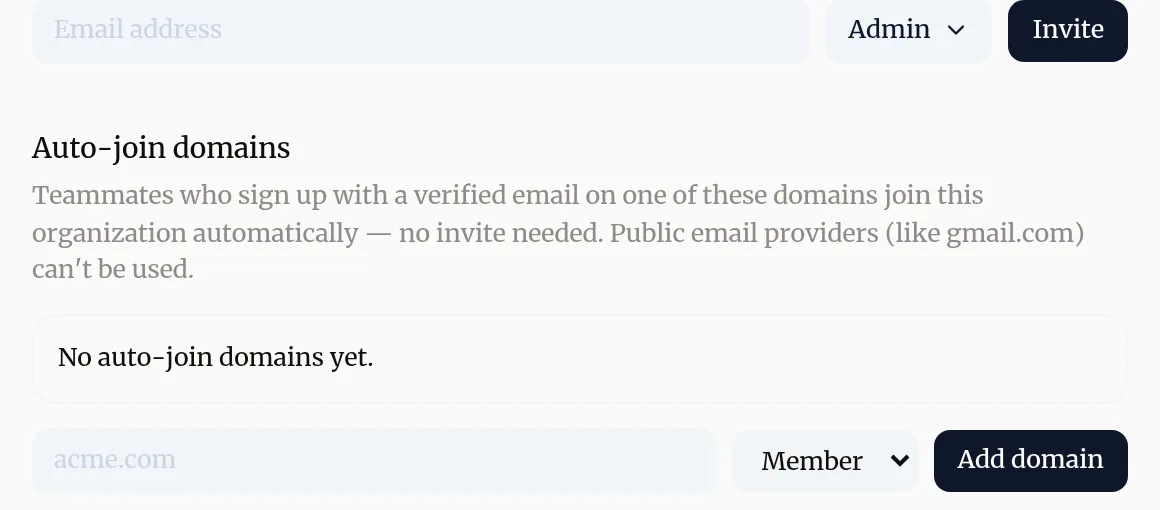
Yes, with an auto-join domain. Anyone who signs up with a verified email on that domain joins your organization as a member.
- In Settings → Members, go to Auto-join domains.
- Type your company’s domain, for example acme.com.
- Press Add domain.
Switch a domain On or Off at any time, or remove it.
Troubleshooting
- If you see "You see "A pending invite already exists for this email"."
- That person already has an invitation waiting. Ask them to check their inbox, or cancel it under Pending Invites and invite them again.
- If you see "Your colleague says the invitation is for a different email."
- They must sign in with the exact address you invited. Invite the address they use, or ask them to sign in with that one.
- If you see "You can't choose a company when inviting an admin."
- Admins always see every company in the organization. To limit someone to some companies, make them a member or a viewer.
- If you see "An auto-join domain is refused."
- Public email providers, like gmail.com, can't be used, and a domain can belong to only one organization. Use your company's own domain.
Questions
Can a client see only their own company?
Yes. Invite them as a viewer and pick their company. They can read that company's work and reports, and nothing else.
Can a member work on some clients only?
Yes. When you invite a member, pick one company instead of All companies. They only see the companies they were given.
Can viewers chat with Baker or publish?
No. Viewers read only. They don't see credits, billing or company settings.
Who can change billing?
Admins and members who work across the whole organization can change plan, card and credits. Billing details and documents are for admins (in an agency that pays for its clients, for its members too). Viewers and people invited to one company can't.
Next steps
- Add a client company to your organization For agencies, how to add a new client as a company, what it costs, and how to get its accounts connected with a setup link.
- Share unpublished work for review Send a client a link to a page before it is published, let them comment on it without an account, and turn their comments into changes.
- Manage your plan, invoices and payment method How Baker's plans work, what each extra company costs, paying in euros or dollars, and where to change plan, card and billing details.
Was this helpful?
Thanks. We read every answer.